Wednesday, March 18, 2026
Linux Mint is what I would recommend to someone who wants to Learn Linux.
My friend was telling me about someone she knew who was thrashing around with some technology. I have seen this happen before, but this time he was rattling my cage with something I had done myself.
The process of learning Linux.
The normal response is "Just install it and use it" but that is way too oversimplified.
I don't use windows. I have a Mac and don't use it either. I would welcome a Mac but I would install Linux on it and be frustrated because the keys are "non standard" and the mouse or trackpad only has one button.
Meh, I'd adapt. Got one gathering dust? I can haz Mac? Oooh! Gimme! K Thx Bai!
:)
While I love new hardware and pretty machines, my newest computer is 5 years old and counting and I don't "need" one. But, thanks for asking!
He got deep into Raspberry Pi and is frustrated by the limitations of the platform. Size/Performance/Add-On Prices. And so forth.
I suggested what I suggest all the time. At this point in history you probably have an "Old Computer" gathering dust in the closet. Many people don't know what to do with it because it has "old data" on it and don't know how to destroy that data.
Use Your Old Computer.
That old computer, unless it is truly old, should be enough to learn on. Let's say 10 years old or newer. i3/i5/i7 with 4GB memory and at least 50GB of disk space. Pretty modest specifications right?
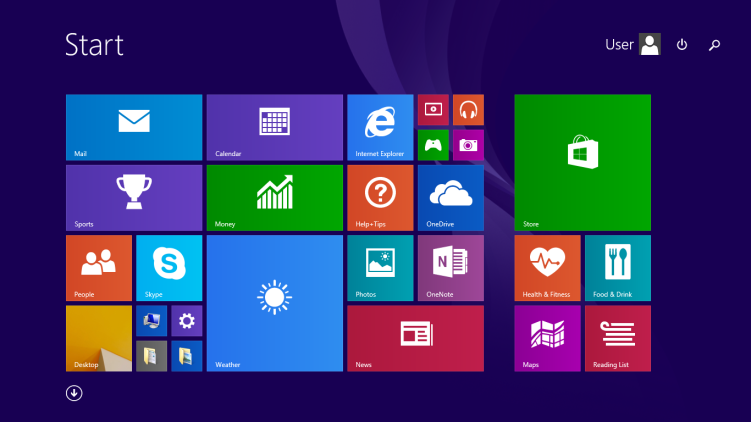
Windows has a lot of "phone home" issues that take up some of that processor. There are also a lot of machines that are at "end of life" according to Microsoft. You can't install Windows 11 on it because of "reasons". Nobody wants ads anywhere, let alone in a start menu that you are forced to use because some dolt decided "It's Betterer!".
Basically "reasons" are something called TPM that is a low level piece of firmware in the computer. I won't go into details, it just flags the computer of not being worthy of upgrade because it doesn't have the latest version.
So with that old computer why not try Linux on that?
There is another way to do this.
Use A Live Version Of Linux.
I'm easing into the bits and bytes of how to go about this because I'm being conversational, why not, it's my blog and I have the space to do so.
But.
A Live Version of Linux is something you probably don't have a lot of experience with if you are a Windows or Mac user.
It basically is a clean and complete version of the operating system that will run on your computer without using the disc drive. A Live Version will allow you to "look around" your computer. If you can't use this computer with this Live Version, you will find out quickly.
Some live distributions even have something called persistence that will allow you to take your computer with you on a USB Stick and create data permanently. Tails is one that is specifically designed for this purpose but I do not recommend this for a learner. Tails is also for the more paranoid of us out there or who are traveling in places where they may lose their computer hardware.
Most of the software you will need to do your daily tasks will be available. Most of the drivers for your older hardware will be available. If you find something missing, it is on you to find a version that works.
However, the one I would recommend is a Distribution of Linux Mint.
Let me unpack that a little. Linux comes as a free download from a group who supports and puts the operating system together so that you can use it, freely. That would be a basic and hopefully not vague description of a "Linux Distribution". We typically call that a "Distro" but that's jargon, even if I do use that word myself.
Linux Mint is a specific Distribution. It's well supported. If it works with your computer, it will be a well prepared software suite. It should talk to your hardware, give you a browser, have an office suite, and look familiar enough for you to at least get your toes wet.
Importantly that this is geared for ease of use. It is designed to be familiar enough to anyone who uses a computer at all to be able to stumble around and do real work on it with very minimal help. It also has a huge library of software that you can explore.
Remember, Linux is Free and Open Source, so you can do what you like with it, generally. Office Productivity, Gaming, Internet, surfing, all the "normal stuff".
Another thing to consider is that there are different looks that you can have with Linux. If you are coming from Mac or Windows, there is one look. Mac looks very similar to the way it has for years and has evolved but kept that look. Windows is more variable from version to version.
Linux has many looks from the old command line, to some that look like Mac, others like Windows. It all depends on how much "shine" and "Eye Candy" you want in your computing experience.
Since this discussion is about basics and getting a look into this thing on old computers, I suggest what I use. It's called XFCE. Everything is "there", and it is one of the quicker software suites. Everything you need to do what you really need to get done and I haven't found much missing.
There is also KDE but since Linux Mint does not have a Distro bundled with it directly, that discussion is for a different time.
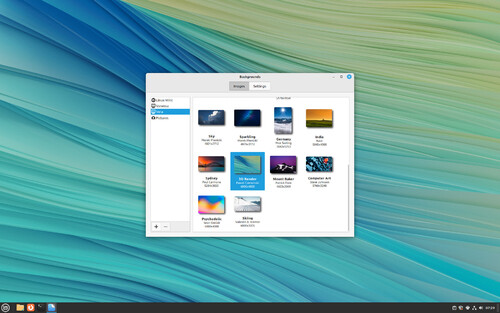
XFCE looks familiar and is designed to be fast and "light". It also is a bit dated in the default look but can be dressed up greatly. I have seen it modified to look like Windows 7 and otherwise to look like a Mac. I use it lightly modified and have for about 20 years as such. It looks "Comfortable to me".
The general process is for you to grab a large downloaded file called an ISO and place it on a suitable USB stick with specific software, then start your computer (or Boot it) from that.
In order to boot my computer from a USB stick, I have to hit "F12" when I turn the computer on, but there are other keys to hit at power up such as enter or "F1".
While that is a list of the general process, you need a few things.
A USB Stick that is clear of data and of a reasonable size of 8GB or more.
The file that you downloaded. That is something that ends with a .ISO extension and will be fairly large. This page is for the current download list of sites that have the current version of Linux Mint XFCE. You will need to choose the location of one that is appropriate for where you live.
The link here will start the download directly. The file was called linuxmint-22.3-xfce-64bit.iso and was 2.8 GB.
Finally a piece of software to get all that data onto that USB Stick correctly. The software will write out to the USB Stick in a way to create it as a "Bootable Drive". In other words, it will make it so that you can run that USB Stick as your computer's operating system and not disturb what sits on the hard drive currently.
I tested the process on a machine that I would prefer it not destroy the data, and it did not harm my installed software - it was live.
But you do have to get software.
Linux Mint suggests a program called "Etcher" but there are others such as "unetbootin". Both are free, and will run on Windows/Mac/Linux. Pick one.
Etcher will burn or copy any ISO to either a USB Stick or a DVD/CD. I haven't used a DVD or a CD in years, so stick with the USB Stick.
unetbootin is a little more specific. If you have an ISO it will burn or copy the file out to your USB Stick. If you don't have the ISO, it will fetch one from a list for you and burn it to the USB Stick.
Slightly different, both work on Windows/Mac/Linux.
Once it is on your stick, boot from that stick and wait for your operating system to show up. Mine took a little bit longer than expected because my laptop battery was dead. I think the battery needs to be replaced.
Linux Mint has some documentation on how to do the entire process, and while it is complete, it is implying that you are going to install on the actual hard drive. In my case I'm not going quite that far.
At this point, you have burned your USB Stick, and booted from it. You should see the Linux Mint Desktop with the green LM Logo in the middle. You are now in a Live Linux session. Poke around and familiarize yourself with what you have been presented with.
At the lower left is your start menu of applications to explore. The only icon on the desktop at this point was an icon to "Install To Computer". If you are happy with the way everything works, go for it. The steps to install are not too complex. This will erase your hard drive and place a fresh copy of Linux Mint on your hardware.
It does look like Windows 7 doesn't it? I rather like what they did with the default look of XFCE which can be a bit too much like Windows XP sometimes.
During the time that I install any copy of Linux I do a few things.
I create a swap partition equal to the size of my memory. This will allow me to hibernate the computer. There may or may not be extra steps to enable this, different distributions will enable hibernate, others do not.
I always encrypt the hard drive. Always. Using a complex password. If someone breaks in and steals your computer, they will not steal your data. Up yours, thief!
I set the computer up to log in as myself directly once the encryption password has been given. In an environment where more than one person are using the computer, this is not for the best. Linux assumes more than one will be able to use the computer if you set it up later for it. This all is a part of the installation process but can be added later.
At any case, Linux Mint will allow you to get exposed to Linux as a rule. It is based on Ubuntu or Debian depending on the version. As such there is a huge amount of help available on the subject.
Debian is known to be one of the most stable versions of Linux available. It is what I use, but for someone getting exposed to Linux, it is a bit advanced.
Ubuntu is not my first choice because it is subject to Corporate Realities. They come along with some things like Snap, which adds complexities to the operating system and slow it down.
Whichever Linux you have, it is compatible with your goals and has a lot of opportunities for learning.
Now, if someone would make an affordable Linux Phone and show me how to get my sports stats off of my sport watch, I would be very interested. The integration is the problem there, and I am way too active not to have them.
Wednesday, July 31, 2024
This is why I will never actually BUY a new Apple product.
I am fortunate in that I have someone who occasionally gives me fairly current, but not new, iPhones. They are still quite usable but not brand spanking new.
Mind you, had they been Androids, I would have rooted them and neutered the "google spying" on me with a hosts file but that's besides the point.
I prefer to be in control of my own technology devices and not have to trust in a walled garden whether it be iOS or Android or Mac or god forbid, Windows.
A Walled Garden from any manufacturer does not benefit you, the end user, eventually. It starts as a curated set of experiences that are for "your best experience" and eventually get corrupted into a spyware or commercial nightmare, or both (See Windows).
This is being written on a Debian Linux based computer that just purrs and does what I want.
My current "daily driver" is an iPhone 12. The problem is that the battery has faded to 81% health. Whatever the blazes that is supposed to mean. The end result is now that I wake up and the phone that was at 100% battery at 8:30 at night before the dog walk and sleep, is at 56% at 5:15 AM.
Who are you talking to while I am asleep? I don't know, I don't know why you are using battery other than to poll my sport watch.
At 56% at 5:15 in the morning, when I have to immediately top off the battery to be able to take Rack the McNab SuperDog (TM) for a first walk of the day gets very complex because I need this blasted phone to count my steps.
Levels of crap happen around me, usually sports related.
Bottom line is that the phone is "old" and failing to hold a charge.
So I went into the drawer that holds my "Inventory" of new-to-me phones and stumbled across the last phone that I moved off of before. It was actually at a newer battery strength than the one that I am trying to move off of but I have others that are better. Newer, with a stronger battery.
That means that my old-old phone is a candidate for "Erase and Remove" any trace of my self from it.
Here is where Apple truly earned my anger.
I told the phone that I did not want it.
It immediately began a backup.
I hit "Skip backup".
It refused and demanded me to enter in a password for iCloud.
"Why?!?!?"
I typed in that password that I have on a spreadsheet and it rejected it.
FOUR TIMES.
Mind you, any other NORMAL operating system would have a little eye that would show you what you typed in clear characters but this being Apple, no.
"Hey Apple, you are Stoopid!" you may have heard me yell, or "similar". Instead of it immediately giving me some sort of notification that it "got" what I was trying to do with it, the software simply sat there as if it were continuing on with its task. No feedback, no way to verify what was happening. Why would I need feedback?
After the fourth time, I used a normal laptop, this one, and a normal browser, Firefox, and logged in to iCloud with my password of record from the spreadsheet I keep.
So here I am an hour into this process.
iCloud logs me in and demands that I consider upgrading the account.
No. I am free, it gives me a whopping 5GB of storage. Never mind that the phone has 256GB of storage on it that I can't access except by jumping through hoops, it wants me to spend more. NO!.
Nonsensical way of doing business, nag your customer until they go to the competition.
Seeing that I have a rooted android phone on the desk, I am considering it.
The entire time that I am proving to this stupidly small, underpowered, and fragile device that I am using the correct password but it refuses to accept it, I'm feeling myself get more and more angry.
I simply wanted to get off the phone. I did not care what was on it. I did not want to save anything from it.
It would not allow me to do it gracefully so what did I do?
With an evil grin I did what many technology users would love to do.
Still wanna know?
I took it to my porch.
I put it on the porch where it was concrete.
I went back into the house in a fit of pique and...
I got the sledge hammer.
It felt great to pound the damn thing.
In fact it felt so good to do that, I did it a second time.
Why on the porch? Because I was able to get the garden hose and saturate the phone. It was now bent on a jaunty angle, and I saw that it was starting to smoke.
Good.
I hosed the thing down and it made many sad Apple noises as it released the magic smoke.
In case you think I should have sent it off to be destroyed, securely, I will. There is an electronics recycling event that I will take the accursed device to in the future along with some other old iPhones so old that they were orphaned by the accursed Apple. Iphone 5 was the oldest, the newest being an 8 that is going to go to a new home in another state.
So if you have a Mac Book Pro? I can fix it for you by installing Debian Linux on it. In the case of the iPhones? I hate them myself, find yourself an e-recycler and go for it.
As for Apple? You will never see a penny from me, your practices seem to be designed for me to need blood pressure medications, and your websites are crap.
Add a button to enter passwords in the clear. If I click on it, it's because I am feeling safe.
As Red Forman says in That 70s Show... Dumbass.
As Red Forman says in That 90s Show... Dumbass.
Wednesday, March 27, 2024
Living With Linux - How I was able to Switch from Debian Testing to Stable to use Backports
There is a meme in the Linux World. The Answer is Always Debian.
However, there are times where the question is "How will I be frustrated by ancient software today".
I moved from "Stable" to "Testing" about six months ago. This week I moved back from Testing To Stable.
People don't often do this, and it is difficult to do gracefully. In short the way I did it was to use a second computer, install a fresh copy of Debian Stable onto it, then use my backup to put back what I needed. Both my /home and my programs.
The long form of that is pretty long and nuanced. The syntax for "backports" is at the bottom of this article.
The scenario was that I had software that got to far out of date because the modern connected world your browser and other software must be absolutely current. Surf the wrong site and you have viruses infesting you. Other sites are purposely breaking software you have and you are forced to upgrade to current.
Debian Linux's reputation is rock hard stability. It does so by very thoroughly testing what they put to get everything safe as of date of issue. Lawyer's Answer is that a week later in the fast world of the modern internet, you will have to have more modern software to protect yourself.
First I want an Encrypted Hard Drive. Reason is in case the house gets broken into, the computer goes missing, whatever, you will have the machine, but you won't have my personal information. My password on the machine is fairly UN-guessable.
Second. That creates a problem. To do a secure clone of the hard drive means that the way encryption works, you need a second machine to get the data off of the backup so you can copy it back to wherever you want it.
Second machine makes things easy. One machine gives you more difficulty and grief. I have the old hardware, I'm fine with maintaining two similar but distinct machines.
Third, my "Daily Driver" computer was great, and went through two different upgrades to the actual hardware. I'm very fortunate to have someone who gives me hand me down laptops that are basically worthless to the organization they work for, and they are expensed. I repair them, which gives me a "New To Me" computer out of something that does not work.
I fix the broken new machine with parts scavenged, recycle the old one, and while everything is out in the open, I simply put the old hard drive in the new machine and go with it at the end of it all. Fast, Safe, Secure.
My old install on Debian Testing that I had for about 3 years via multiple computers and multiple updates was now broken. It was asking for an upgrade and when I did that via "apt update" and "apt upgrade" it killed my install if I forced the upgrade. After two months of this I decided enough is enough and proceeded after a backup happened and I did it to use backports and in this broad fashion.
First, get a clone of the original Debian Testing hard drive and set it aside.
Second, install the most up to date version of Debian Stable you can find on to a stick and then onto the other similar computer.
I did say nuanced. All my machines are Thinkpad. with similar hardware, and all are encrypted. The older one I installed to is over 7 years old with a bad battery which is why I now consider it "parts".
To create the 8gb stick I used 'dd if="MyDebianISO.iso" of=/dev/sdb conv=noerror,sync status=progress' and walked away. When finished, I booted from that stick on the older computer, installed it.
It takes about 15 minutes on the "old" computer to install Debian. It's just not worth the time to delve into fixing things at this point.
Third, create a list of markings on the "new" computer that is running Testing. Run Synaptic, Create a text file of everything installed. That creates a problem where the programs that are broken will break the install on the new machine. To find them, sort the markings and hunt. Delete what you do not need, and import it into Synaptic on the old, Stable install.
Sorry, I can't be more specific than that since your needs are different than mine, but the sort command is simple. Assuming you have marks.txt as your input, marks_sorted.txt as output: cat marks.txt | sort > marks_sorted.txt
Get that file to the Stable machine and import your marks_sorted.txt after deleting anything you do not want into Synaptic there. Then verify you don't have a broken install, and update the Stable computer
I verified my install, rebooted the computer a couple times and verified I was up to date.
Result was now my computer now had a "clean" version of Stable up to date. I swapped hard drives with the newer hardware because it was marginally faster with a fresh battery in it, and rebooted there. Everything worked.
Except my Firefox was the older one, and yt-dlp was not working in some situations. After all, you sometimes want to listen to media offline, especially as an endurance athlete like I am.
That required two different fixes.
Firefox - I went with the version in www.flathub.org instead of going with the one in mozilla. It's said to be current. Same with Librewolf. I use one for "my surfing" the Librewolf for emails and (unfortunately) facebook. In my mind along with my own /etc/hosts file, it keeps the garbage ads and spying by the sites down.
yt-dlp was demanding that I went to backports to do an update. This is the point of all this text.
Backports.
Determine that /etc/apt/sources.list has backports enabled.
I had these lines at the bottom of my sources.list file:
# Backports allow you to install newer versions of software made available for this release
deb http://deb.debian.org/debian/ bookworm-backports main non-free-firmware
deb-src http://deb.debian.org/debian/ bookworm-backports main non-free-firmware
To use Backports to update, you only update a SINGLE program. apt will grab what it needs to keep you up to date (I hope) so you aren't missing any dependencies.
apt update
apt upgrade "NeededPackageName"/bookworm-backports
In my specific case: apt upgrade yt-dlp/bookworm-backports
Wednesday, March 13, 2024
Migrating my Linux Install From One Machine to the next. Took me longer to open the case.
Then I moved down here to Florida. The power company who shall remain nameless with their crappy infrastructure took care of that.
I had a rather nice desktop machine. Then I realized that it was killed by power spikes. The old laptop I had still worked.
Hmm, I'm onto something here.
Basically that power brick on the floor filtered the power spikes. Literally, it blew out a power brick and left me powerless until I could get to the computer store down in Miami.
Then I realized that there is not enough room for a desk and a desktop and a giant CRT Style Monitor. Hey it was the "Naughties" so LCD Screens were still expensive.
I migrated to my laptop permanently.
It was harder to move data around then, the hardware did not lend itself to it, and Windows... Well the less said about that the better.
Now, my newest computer is a little more than 3 years old (November 2020) and it's fast in comparison. I moved over to Linux permanently and never looked back a while ago. Some time around 2010, maybe earlier. When Windows 8.1 came out. I still have that install on a very old laptop and cringe every time I use it. Ugly block land, and now Windows 11 is coming back to the way it used to look in Windows 2000 ... with AI? Sheesh how do you people use Windows these days? It's a steaming pile of sluggish poop! Do you want SkyNet because AI is how you get Terminator.
This particular "new" machine I have here is a Lenovo T15 with 16GB of memory and a rather fast 500GB hard drive.
How I went to it was simple. I opened it up and connected the new machine and the hard drive clone of a backup from my X390 Yoga. Turned it on and it worked.
Yep. That's it. Really, that old Yoga was feeling it's age because the USB-C socket that I used to power it was getting flaky but it is still a solid performer - Linux is a very forgiving environment. The prior two upgrades, going back about 10 years, are both usable speed wise, even today. You can't do that with Windows.
Oh, I had the "new" computer reboot a couple times and looked over the bios on the new machine and everything was just like I left it.
All done until this morning. I was presented with an "initramfs" prompt. It was an error that was fixed easily by two file system checks. Took about 5 minutes once I remembered what I needed to do.
fsck -y /dev/mapper/luks*d
fsck -y /dev/mapper/luks*2
That means: File System Check, answer everything yes, on the drives referenced in the Mapper directory.
Yep. That's it. Took about 15 minutes to move the hardware. Newer machine, larger screen, faster processor, still an encrypted hard drive. Thanks for the upgrade! I am right back where I was, doing my thing and happily listening to Mexican Pop on my cheap little external speakers.
Wednesday, February 28, 2024
Debian may be stable, but that doesn't mean I have to be. "touch /forcefsck" will help.
You see, If you are running Windows on your personal computer, a lot of the control has been slowly taken from you until Microsoft has turned something that was once a long time ago a hobby machine, into an appliance.
The Mac never really was anything but an appliance. Do as we say, stay in our little walled garden, and walk in lock step while pretending you have freedom. Draw your pictures and enjoy.
I run Linux. There really are no rules. You have a computer, in my case an older one that is a hand me down from corporate life. You push the Windows install away, and you take the control back.
The design philosophy is drastically different. You have control. Free will, really. So you find an acceptable level of risk that fits your capabilities, your knowledge, and you make your own decisions. This implies you will make mistakes along the way. You will break things. It's not always a comfortable ride, although it can be.
I use a version of the operating system called Debian. In its Stable form, it is one of the most comfortable and competent pieces of software you will ever experience. It is the warm comforter on a cold night with a nice mug of hot chocolate and a Labrador retriever sitting by your side. It simply does not break. Oh sure, it is known to be a bit older, but that software being older has its benefits. Stability.
It's the air cooled VW Beetle of your dreams, or in my case that 2002 Jeep Wrangler that is sitting in the driveway with no rust and no check engine light. I'm proud of that, really. I mean who has a 22 year old car that is worth $15K without really trying?
On the other hand, I've turned this island of stability into a rowdy puppy. With the Zoomies. Colliding into the china cabinet and breaking dishes.
How? I turned it into "Testing Debian". Now keep in mind, Debian anything is more stable than most. There are companies that have based their entire existence on running something that is called "Testing" by one of the most careful and conservative organizations in the Linux world.
Where Windows and the Mac are all hush-hush and closed source, if I had a mind to, I could get the actual code that built the software my computer runs on and build my own version. Create my own distribution. There are a large number of computer companies that do just that.
But, things sometimes go awry. Hence my bad night and day. Something has been lingering and I tried to force it. I ended up in a "Dependency Hell" where one piece of software was depending on another to run at a low level within the computer's library of software.
Didn't work. I gave up just after breakfast and did something I did not want to do - I restored the computer from a backup.
And that's the moral of the story. Always have a complete back up of your computer. I did. A clone of my hard drive. Why not? Memory is cheap these days, and I set the machine to do a full and complete backup on Sunday night so on Monday morning, I can update the thing on my own time.
Yes, Windows users, I can tell my machine to do things on my own schedule even if the thing is not going to work right once I am done.
Windows Update be damned, I'm flying by the seat of my pants.
That is how my Jeep got its wheels cleaned. Start the restore, then get bored. I went outside and cleaned the car while the "dd" copy was working.
"dd"? Originally meant Disk Dump, but I have used it like Disk Destroyer before.
Jeep has the wheels cleaned, windows washed, and I have a 22 year old car that the check engine light is now turned off. Not every Jeep Wrangler (2002 TJ) Owner can say that.
The Computer? I'm back on it, as you can see. Feet up on the couch creating a divot on the arm just like always.
On the other hand the version of Debian will tick over so the Testing version I am on becomes "Stable" in summer. Until then, I just run in parallel like I am here. Encrypted hard drive, testing operating system, and all.
Had I had any sort of a command prompt I'd look for the following:
From the command prompt, make sure your encrypted disk is at least readable. Mine was not, it booted directly into the Bios which meant I was stuffed.
In /dev/mapper there are files pointing to your encrypted hard disks.
fsck -y /dev/mapper/ (your disk names)
Then try a reboot. If you are successful you will end up at your normal desktop. If not, find your back up drive and do a restore.
You did do a backup right?
Ok, now that you are back, this command will force a fsck (file system check) on your hard drives when you reboot next time.
sudo touch /forcefsck
Wednesday, January 11, 2023
Windows 7, 8, and 8.1? End of Life. As for me "I don't do windows".
I just had let my dog out to water the mango tree for the last time in the evening. I was sitting on the edge of my bed in a pair of black boxer brief shorts.
Yes, boxers, not briefs.
I had done something I rarely do. I started Windows Update.
Mind you, I'm not certain I got the software I told it to download. I am no longer a Windows person.
That computer and the one I am using right now are older. As in this one has a sticker on its bottom that says Windows 8 Pro. I'd put the date some time in 20-Teens. The one I updated was older. Early 20-Teens. Windows 8.1 was released to Manufacture as of October 2013 according to this Wikipedia article.
That old machine with the Windows on it is my only machine with Windows. It pre-dates Windows 8.1 I think it was the original ugly block land of Windows 8. That was about a year before on October 2012. Hideous, huh?
I Don't Do Windows. It runs like a "Lead Sled".
I'm on that slightly newer machine that is purring along running a current copy of Debian Linux. Never a problem. Never a quirk. It Just Works.
Windows? Meh. That's what I use to download Debian.
I used to be quite strong in diagnosing problems in it but when Windows 8 came along, it started to have far too many "Phone Home" issues for my own personal tastes. I began to wean myself off of it around 2013 and really only use it for the annual slog through tax season.
Hmm... Maybe I need to look into that. My taxes will be fairly simple anyway.
At any rate, If you need help keeping your old computer going, you have a few choices.
First, you can buy a new machine and an external hard drive. Copy your stuff onto the hard drive from the old machine, then get used to which ever operating system you choose on your new one. Windows 11 or perhaps a Mac. Copy your stuff onto the new one and live there.
Second, you can ignore the "Consequences could be Dire" crowd and get lots of exposure to exploits. Don't take that machine to the coffee shop. Once you leave home with that you're bound to eventually get hacked. Limit your surfing on that machine as well. I think I heard that they are planning on stopping virus scanner updates there too.
Third, do what I did. I backed my needed stuff up, then installed Linux on the machine. I have an encrypted hard drive, a desktop that I have made to look like my old Windows 7 desktop so it is pleasantly familiar, and when I get a newer "Corporate Handmedown", I can repeat my own install routine and have a new-to-me computer in about 2 hours.
I have done that upgrade twice within the last year. Each time took about 2 hours.
If it weren't for my own sports and nutrition interests I'd be using Linux on an older phone and telling the hackers and both Apple and Google to kiss my fuzzy butt. I use very few apps on the phone anyway because I find all that walking blindly into a phone pole because social media bleeped at me very pointless. The software that talks to my sports watch however is very important.
After all, I am at 23,867 miles total career miles on my inline skates. Having that watch makes counting distances so much more simple.
So good luck with whatever you do. I can help you to the right direction with safeguarding your data, I still consider myself very security aware. But as for Windows?
Wednesday, September 21, 2022
Running VNC or Other Program at Startup on Linux Mint 21 or other Linux Using Systemd
...
Between power pops and other instabilities here in South Florida’s own FPL, and their abysmal service, I managed to build a server. We literally had one power outage and multiple "pops" over the last week and the weather has been gentle recently.
No, really, FPL is the Comcast of electrical services. You need a generator, Battery Backup, filters and so on. I lost two desktops before learning this and luckily laptops are better suited to take Utility Company Mishaps.
I need the server. I was given a list of hardware, specifically a desktop server from about 10 years ago. Acer Aspire Easystore H340.
Immediately I got a
cable that terminated on the motherboard and turned my widescreen
analog VGA monitor into an older style 1080 by 768 Square by
stretching pixels.
Removed all drives and installed a
laptop boot drive.
Turned off the Bios for booting from
anything but USB Sticks and first hard drive.
I installed
Linux Mint 21 Xfce from the ISO.
Since this machine is an
appliance, I installed it completely stock – taking the most “normal”
choices under install.
When it is
installed, turn off all screensavers – my machine would be a
headless server. The password protecting screensaver that "came up" when it timed out as a security measure would crash the machine when you were connected with VNC. My own machine is in my house, behind a firewall, and only turned on when I need it. If it had Wake On LAN enabled it would be perfect for the task. Apparently the original software from the discontinued M$ Windows Home Server product had it so it's a matter of proving it can be used.
The hardest part of headless is getting
VNC to work on startup. I went through a long list of distributions
and a long list of software “tricks” to try to get it to work
when you sign on it.
The answer is this link -
https://community.linuxmint.com/tutorial/view/2334
I
will reproduce its text literally from before. Reason is that forum
documentation often will disappear. I use this blog as a scratch pad
so I want this to be here 10 years down the road.
Secondly
at time of writing, I could not find a “cookbook” of how to add
VNC protocol to the machine except for this one. The hang up was
getting VNC to start as a Service at boot.
Thanks to
Linux Mint and their excellent documentation, it works. Mind you it
was written for version 18 and mine is version 21, hence my leaving
it here for me to see in the future. As of today, this original is a
5 year old posting derived from something older. I want to make sure
I have it because it should work with any systemd based linux
machine.
As I go onward, I
will add the next steps – configuring a /etc/fstab to mount a drive
optionally at boot, and the samba configuration.
For now,
here is Linux Mint’s documentation on how to make a service start
at boot. I am presenting it literally as of my date of publishing,
and I recommend that you find it there. This is really just a note
taped to the underside of my keyboard for all to share.
HOWTO:
Setup VNC Server (x11vnc) on Linux Mint 18
This tutorial was adapted from here.
1. Remove the default Vino server: (Note, LM 21 did not have vino)
sudo apt-get -y remove vino
2. Install x11vnc:
sudo apt-get -y install x11vnc
3. Create the directory for the password file:
sudo mkdir /etc/x11vnc
4. Create the encrypted password file:
sudo x11vnc --storepasswd /etc/x11vnc/vncpwd
You will be asked to enter and verify the password. Then press Y to save the password file.
5. Create the systemd service file for the x11vnc service:
sudo xed /lib/systemd/system/x11vnc.service
Copy/Paste this code into the empty file:
[Unit]
Description=Start x11vnc at
startup.
After=multi-user.target
[Service]
Type=simple
ExecStart=/usr/bin/x11vnc -auth
guess -forever -noxdamage -repeat -rfbauth /etc/x11vnc/vncpwd
-rfbport 5900 -shared
[Install]
WantedBy=multi-user.target
6:
Reload the services:
sudo systemctl daemon-reload
7. Enable the x11vnc service at boot time:
sudo systemctl enable x11vnc.service
8. Start the service:
Either reboot or
sudo systemctl start x11vnc.service
Wednesday, April 13, 2022
Moving To A New Machine In Debian Linux With Encryption
The back story (I promise it will be short):
When Bill told me that he was leaving his native South Florida for Knoxville area, I had two thoughts: Why? and I'll find a Computer for you.
When asked about them he immediately said that he wanted Linux instead of Windows which truly surprised me. Linux is about 3% of the home market, Windows is about 88%. May as well have the best, right?
So I had an i3 machine that runs beautifully on Debian Linux, but at 4GB of memory, it is not suited to have Windows on it.
Also, this machine has to be encrypted since we don't know how bad the crime is up there in his new neighborhood. If the machine gets stolen no personal information will be found. The entire computer is encrypted. Boot sector (GRUB), the operating system, and his own home directory.
Finishing this showed me the need for me to migrate to a similar setup. I had a faster machine than the one I was using that was idle, and if I could encrypt a machine for a friend, I could encrypt a machine for me.
Standard Internet Warranty Applies: You do this at your own risk. While I expect these instructions to be complete, that may be because I wrote them to my own level of expertise and it is possible I skipped over something. Read them completely and if you do not understand them then find someone to help you. Nobody at Ramblingmoose takes any responsibility for what you are about to do. Linux is very user friendly but it is very choosy about who its friends are.
Good luck!
How I did it:
Download Debian Live. Specifically in this case debian-live-11.2.0-amd64-xfce+nonfree.iso .
Since that version is obsolete but will be updated by the installer, THIS LINK points to (currently) version 11.3.0. If you don't like XFCE, you can pick your own DE.
When the download was complete, I plugged in a memory stick of 4GB plus and dd the file as root:
dd if=debian-live-11.2.0-amd64-xfce+nonfree.iso of=/dev/sdb conv=noerror,sync status=progress
I wanted Live, and I wanted non free. Debian's goals of "libre" software are all well and good, but to use Wifi means you pretty much have to have proprietary "blobs" in your library.
That version will boot the new machine into a "live" version of the operating system that allowed me to step through the installer in a graphical environment.
Sure character based works, but it confused me as to where I could find the encryption part.
Backup the old machine FIRST:
After that finished, Boot the new machine with that stick and while waiting for that, begin to backup the old machine to an external drive that is sufficient to hold the /home directory as well as a couple specific files that will be saved to the /home directory FIRST.
1) Go into synaptic on the old machine and create a Manifest text file to be imported.
File, Save Markings As, Click the box at the bottom "Save Full State, and write the file out" .
2) Go into Firefox and any other browsers and save the bookmark links into a json file.
Bookmarks, Manage Bookmarks, Import and Backup, Backup, and Create your File.
Copy the entire /home tree from your "old" computer to an external drive.
Make certain that you have enough room for everything including the two files you just created.
Debian Install Steps:
I actually repeated the install a couple times before I got it right, since there are always wrinkles. I am writing this as I do a "test install" for the blogs. Steps will be written as I do them, and I will note the ones that I personally find important.
Welcome:
From the first Main Menu, Select Debian GNU/Linux Live.
Allow the machine to come to a desktop.
Sign onto a Wifi Network or Connect to Ethernet so the installer will get the latest software.
Double click to launch "Install Debian".
"Welcome to the Calamares Installer for Debian 11 (Bullseye)." screen will show.
Select your language (American English for me).
Click Next.
Location:
Select your location (Region: America and Zone: New York).
Select your system language (American English).
Select your number and date format (American English, United States).
-The prior three can be changed within XFCE's settings app on the Applications Menu.
Click Next.
Keyboard:
Keyboard Model can be changed, although I have good luck with the one that gets selected by Debian.
Test the keyboard if you feel that is necessary.
Click Next.
Partitions:
I will select Erase Disc to delete all data from the destination hard drive, you may not have the same priorities - think this one through to fit your personal needs!
I am encrypting the entire disc so I will click "Encrypt System".
That opens up the place to enter in the password for the system and change the graphic to allow you to see what it intends to do on your computer.
Verify the Boot Loader Location is on the intended drive - usually /dev/sda
Click Next.
Users:
Enter your name: it will create a tree for this user under /home
Enter your login name: should be the same as the first for a home user.
The Name of the Computer on the network.
-Must not be the same as another machine on your network.
Choose your password and enter it twice.
Login Automatically without a password.
-If you click this box it will allow you to get into your machine with only a "GRUB" password in the boot sector. I select this entry personally.
Click Next.
Summary:
It allows you to see what you have told the installer to do.
Review this information and if you are ready to install and perhaps erase your hard drive.
Click Install.
Install:
Go make a drink. It will be enough time while it goes out and creates your new computer.
If you get back and the screen is locked, user and password are:
User = user
Password = live
On reboot:
Enter the Password you gave the installer at the "Enter Passphrase" prompt in GRUB.
Hit enter, it will take time to decrypt the boot sector.
The grub menu will come up and the computer will continue to boot.
You will see the Debian logo and "cryptsetup: luks-.... set up successfully" message.
At this point you will be at your new desktop.
Enter your Wifi password or make sure that Ethernet is working.
To Restore:
Once your backup on the old computer is complete, unmount the drive and plug it into the new computer.
Hopefully it is all USB 3.0 because the restore took me about 8 minutes to complete.
Click on Applications and Launch Terminal.
In Terminal enter root by "sudo su" and enter your user's password.
To copy the data back enter "thunar /home &".
Yes you will have to do this via root, and once complete, you will have to change things to make your new system "accept" the old data:
1) copy the backup data to the /home directory.
2) NOTE!: If you encounter any conflicts where thunar finds a duplicate file, "skip all" is the correct response. If not, you will render your system intact but your data will be locked in odd and subtle ways.
3) when the copy is finished, you will have to reclaim the files permissions to be correct for your end user.
Assuming you are "bill", as root:
A) cd /home
B) chown -R bill *
C) chown -R bill .*
D) chgrp -R bill*
E) chgrp -R bill .*
This may be overkill but this way I got ownership of my home tree including everything in my ~/.cache directory and any important .conf files. I also had a message present itself saying that I can't move something into trash because of permissions, this will avoid that.
At this point you should be "non destructively" on your new machine, with your old machine still intact. The new machine should be very close to what you left. Mine was.
Enjoy!
Wednesday, March 17, 2021
Try A Clone Of Your Disk When Moving To A New Computer With Linux
Forward: Here I am two weeks later. The original upgrade worked like a champ. I'm on it right now and it is happy.
Then I tried again with a very different pair of machines. There were some pretty big problems with the upgrade. The problem boiled down to the internal assignment of the hardware to Debian. You can check this with a live CD.
Where the old System V Unix hardware assignments of /dev/sda for your first drive have been used since the 1980s under Linux, the new machine, a Thinkpad Carbon with a m.2 hard drive came up as /dev/nvme0p1 which broke Apt.
I'm currently reevaluating. If the new machine starts with the disc drive being assigned to /dev/sda then the following write-up should work. I have been advised to use a permanent symbolic link to restore fidelity but I am unsure whether I will proceed or just throw up my hands and install Debian from scratch, then import the software manifest from Synaptic and upgrade.
Stay tuned.
With Linux, there are a couple things that people in a home situation are told frequently.
Try it out and enjoy the journey is one of the first things I keep saying. After all you grew up with people around you using Windows or Mac. The Linux software is new, it does things differently, the rules have changed. Don't forget it is completely customizable and can be changed easily.
The next one is if you are going to do it, do it right and get a used Thinkpad. The hardware is usually repairable and pretty much bulletproof. I have done an install on some rather crusty old Thinkpads and they just seem to work. The documents on how to repair these machines are available on PDF and the detail is down to which screws to remove first.
Debian with the "Non-Free" .ISO files copied onto a USB stick. Boot and install.
However, what do you do if you have a new-to-you computer? It is much easier than on Windows.
The scenerio was I was given a newer Thinkpad T550. I have my mature, four year old Debian install on the older Thinkpad Yoga. The hardware is similar but not exactly identical.
Old was an 8GB i7 Yoga with an SSD and Touchscreen.
New was a 16GB i7 Thinkpad T550 with an SSD and no Touchscreen.
So I had four years of experience on the old machine. Four years of installing software, tweaking the machine for "silky smooth" running, and a software library that suits my needs. I did not want to go through the whole creation routine, although the information is available on this blog on how to do it.
I was not going to encrypt the new machine, although that will be done in the future.
It was fairly simple.
I have an external drive case for the SSD in the Yoga. I merely put the Yoga's drive in the case and booted the T550 from the external drive.
Step 2 was once I knew I was running on the Yoga's drive, dd the drive across to the T550's internal drive.
To determine what was going on, I verified what I was doing via running gparted and looking at where I was booted from.
sudo dd if=/dev/sda of=/dev/sdb conv=noerror,sync status=progress
Wait four or five hours for it all to finish.
Shut down the T550 and unplug the external drive caddy.
On boot, it put me in single user mode where I had to "fsck /dev/sda1" as well as sda2 and sda5.
Power off and boot again.
I was staring at my normal log in screen on the new machine. No weird special software, it's all a part of the operating system. All my tweaks, shares, installed software was in place. I could take time to move in but really there was no need to worry.
That's it. All done.
The reason why it works is because the hardware basis was similar. I was going to hardware that was supported by Linux's kernel, and drivers were already there for the more basic hardware. I was also lucky, nothing was missing. It would be enumerated with the boot and missing drivers could be found by looking through "sudo dmesg".
I have also done this trick with a Dell Precision and a Thinkpad. And back. Linux is more forgiving than its reputation gives it. Again the hardware between the two computers was not that different and I did have to make sure that drivers were not missing on boot.
You can't do that in Windows so easily because over the years they purposely took the ability to do this away. It was able to be done back as far as the early XP days, but I would not even attempt that now. Plus I left the Windows world when they started turning a rather popular operating system into a steaming pile of spyware with a god awful user interface.
The problem with this process is that you wind up with your machine exactly the way it was before on the old hardware. If there were problems in the software before it won't fix it, and being on old drivers will result in a possibly less efficient machine.
But here I am a month down the road and my T550 is running great.
Wednesday, January 13, 2021
Debian Linux and iOS - Taming the iPhone with Documents By Reddle to use YOUR data on YOUR iDevice
I hate Apple's iOS.
They took a product called BSD, cut it down to suit, then locked it down so hard that if you truly know what you want to get done, you are hamstrung.
I used an "Ancient" Samsung Galaxy S4 from 2013 from 2014 until November 23, 2020. Rest in pieces old friend. When I fell off my skates after 22,217 miles I finally broke my first bone. I also broke my S4. It boots, but won't "Hold The Tower" and disconnects due to sim error. I may revisit this later, but for now I have bigger problems.
Over the years I have been given a bunch of "extra" iPhones as every year, Apple forces their sheep to Buy! New! Shiny! And! Not! Use! Old! Crap!
Yeah, right. A year ago that Old! Crap! was New! Shiny! Isn't planned obsolescence wonderful?
Did I say I use Linux? Almost Always. I have someone in the house who insists that I do my taxes on Turbo Tax, and that's the only time I ever boot a dusty Windows 8.1 computer.
I had to set up my latest iPhone, an iPhone 7 Plus. Rather pretty hardware, I will say, but all that experience configuring the phone gave me some stiff requirements.
I author Video,
I author Audio,
I author Photography.
You have seen all of these if you follow my blog.
I require the phone to be open as another computer share on my network, and fully accessible to my user and others in the house.
Apple has locked me out of all of that. The LineageOS I used on the S4 allowed that and the ability to block any ads with ad blockers in Firefox plus a hosts file that I could edit at will.
While iPhone won't let me block the ads with a hosts file, I did find a work around.
I needed a new work around because I had this nonsense working on the iPhone before but they broke compatibility with my software. There's an active contempt in Apple's hive mind for anything not aligned with their view of how anything iOS is "supposed" to be used.
Step 1.
Solution: For ad blocking, install and use "DNSCloak".
It pushes all your traffic through a piece of software called a VPN that is configurable. I can even import my hosts file from the computer I am using right now to write to you. This is what I did and I almost never see an ad. In fact, it is quite jarring when I do.
I did select "doh.tlarap.org" and I changed that easily plus enhance it with my own rules.
Step 2.
I require the ability to read from and write media to my network computers at will. Apple says you can't do that because the Dead Black Turtlenecked God decreed utter simplicity.
(Ooh! Was that Thunder?)
What a crock. Every app now needs a back button. Some depend on your home button if it exists. Others have a "Back" link at random places in their apps. Lax standardization. Really just freakin' give me a break!
If I ever get the chance, I will find his grave and poop on it. My Phone, My Rules. If there are any limitations I will remove them. Linux says everything is a file. I expect the same full access and I demand compliance.
Solution: Install and use "Documents by Readdle".
What Documents gives you is a "file manager" to access your files (Pictures, Videos, Music, PDF, whatever). You tell it to find the data. It imports it into iTunes. You use your data however you want, it won't judge.
It is a trivial program to use. Assuming you have your data somewhere it can reach, it's a matter of setting up the "Connections" to your data. That can be on a local Windows SMB share, on iCloud, Dropbox, Google Drive, Box, One Drive, SharePoint, or Yandex Disk.
It makes connection, shows you what you have there, and allows you to import it or do whatever you want. Play and Delete I am particularly fond of.
It saves me a heck of a lot of time doing surfs to Spotify/Soundcloud/etc and playing the music I want to play from the web. I really don't want to launch Firefox to surf radio.garden to play some obscure to the US station in Port of Spain, Trinidad or Ensenada, Mexico to get some music to jam to when I get back on my inline skates. Having my own content locally is so much easier, and I can park things anywhere I have access to.
Wednesday, August 7, 2019
Debian Buster with XFCE4 Basics - Stopping the Windows From Going Full Screen on the Edges
While I can make my Debian Linux look like just about anything including a Mac, various versions of Windows, and more, I have a fairly lightly modified desktop. I look for speed and flexibility and it shows.
However sometimes things just don't go quite right.
I use a trackball, not a mouse. I need it for graphics work both here on the blog and elsewhere. The Hand Tremors we all have mean that sometimes something I do will jitter.
Sometimes I just get a little too close to the edges of the windows.
Either way it means now I have a window I am trying to move to a corner or a side has just exploded full screen or is strobing large and small in some fit of electronic insanity.
Lets stop that.
In XFCE 4:- Click Applications Menu.
- Mouse over to Settings, then down to Window Manager Tweaks.
- Click on the "Accessibility" tab.
- Click the check box off on "Automatically tile windows when moving toward the screen edge".
- Click close.
That's it you're done.
Enjoy. No more weird strobing.
If you want it back, simply reverse the steps and click the box back on.
Wednesday, June 12, 2019
Raspberry Pi - How to clone your boot chip and backup your system
I'm not a Mac or Windows Guy, I use Debian Linux, exclusively.
The lay of the land is
- Host Computer running Linux
- Sufficient space on the internal hard drive
- A chip reader to connect the chip to the USB chain of the host computer
So you have a credit card sized computer. The little computer that could.
You decided to do some things to it and perhaps got your feet wet using Linux.
Good for you. That's one good use for a Raspberry Pi.
It's a machine that is best used for learning. Doing weird projects like you see all over the place.
I have the second "use case" for it here. It's a great Print Server. I turn it on, my Linux desktop sees it, and I can print to it.
All that requires some customization of the machine, installing CUPS, maybe some other things like using it as a small data server with SAMBA.
You got your machine stable but did you back it up?
After all, if you're playing with RTL-SDR and want to look at some amateur radio using the Pi to serve the radio out from where the antenna is, it will take more customization that you won't want to lose.
Ok, so since the Raspberry Pi can run off a couple rechargeable batteries or a wall wart, it's getting put out in the shed and is now nice and stable but the second situation comes to mind for backing it up.
Debian and Raspbian will be upgraded to the next version "very soon". There's no rush for that, the old stable will be maintained for a few years, I mean Linux isn't managed like Windows is, is it?
Even though the next version, Testing, is stable enough to use as a daily driver like I do, you really do want to back that machine before you upgrade in case you do it wrong.
One final reason to back up is that the Raspberry Pi occasionally corrupts the litlle SDHC chip that has the Operating System on it due to static electricity, power pops and so forth. That is how the hardware is constructed, you can't avoid power instability without filters or battery backups.
Get the picture?
Here is how I do a backup, and when I am done, I have an .ISO file that I can write out to a different chip.
- First shut down and power off the Pi.
- Remove the Pi's Boot Chip and put it in your USB Chip Reader.
- Make sure your Linux Host Computer is turned on, and booted.
- Navigate to the directory you want to store your .ISO image with Terminal under Root.
- Plug the USB Chip Reader with the chip into the USB Port.
- From the Root Prompt run "dmesg". dmesg will scroll very quickly all the console information, but what you are looking for is a message that says that you plugged in something to /dev/sdb or similar. In my case, it came up on /dev/sdd . The messages that I got when I plugged the chip in are below.
[132387.224573] usb 3-2: New USB device found, idVendor=05e3, idProduct=0749, bcdDevice=15.32
[132387.224577] usb 3-2: New USB device strings: Mfr=3, Product=4, SerialNumber=2
[132387.224579] usb 3-2: Product: USB3.0 Card Reader
[132387.224580] usb 3-2: Manufacturer: Generic
[132387.224582] usb 3-2: SerialNumber: 000000001532
[132387.227673] usb-storage 3-2:1.0: USB Mass Storage device detected
[132387.263161] scsi host2: usb-storage 3-2:1.0
[132388.282897] scsi 2:0:0:0: Direct-Access Generic STORAGE DEVICE 1532 PQ: 0 ANSI: 6
[132388.286984] sd 2:0:0:0: Attached scsi generic sg3 type 0
[132388.679099] sd 2:0:0:0: [sdd] 31116288 512-byte logical blocks: (15.9 GB/14.8 GiB)
[132388.679447] sd 2:0:0:0: [sdd] Write Protect is off
[132388.679450] sd 2:0:0:0: [sdd] Mode Sense: 21 00 00 00
[132388.679775] sd 2:0:0:0: [sdd] Write cache: disabled, read cache: enabled, doesn't support DPO or FUA
[132388.686945] sdd: sdd1 sdd2 < sdd5 sdd6 sdd7 >
[132388.688860] sd 2:0:0:0: [sdd] Attached SCSI removable disk
- The command to do the backup is a simple dd command. This command will be creating a file called raspberrypibackup.iso in the present working directory. Assuming your linux host saw the USB stick as /dev/sdb the command is following:
dd if=/dev/sdb of=raspberrypibackup.iso conv=noerror,sync status=progress
Really that is it. Just issue that command, walk away. It took about an hour for me to do this al, plenty of time to do something else.
Or just go have a coffee.
When it is complete you will have your backup ISO and you can copy that back out to a chip or just leave the file on your hard disc as an archive.
The restore is the same dd command with the if and of parameters swapped:
dd if=raspberrypibackup.iso of=/dev/sdb conv=noerror,sync status=progress
Wednesday, May 1, 2019
Distro Hopping is pointless because the Answer Is Always Debian
Later you replace the blade.
Sharpen the blade again.
Chop the wood for the fireplace this winter.
But... Is it the same Axe?
There are indeed options. Alternatives, even with computers. That's what this is all about.
"This" is "Distrohopping".
Think of it as remodeling your computer instead of your bathroom - which is a very small area that results in your emptying your bank account into a small hole in the floor where all your money turns to sh... sewage.
Windows and Mac people don't really understand the concept, but it is more like the ultimate theme.
You see, I actually enjoy tweaking things on my computer. I have the freedom to tweak away. Change fonts, colors, even the entire way that the work flow happens on the thing.
I expect everything to just work. Why not, I've got the tools. I can change almost everything.
I stopped running Windows when I found out that Microsoft gave themselves the right to watch every little thing that I am doing on my computer. Since they are not paying me for that right, I dumped Windows.
On the spot. "F" that spyware.
Not completely sure how Mac fits in that, however I finally got the chance to play around with the Apple operating system and found its rigidity never fit with my innate curiosity.
So here I am on Linux. Debian Linux to it's friends. BSD People know what I am talking about when I refer to absolute control, so come close, little cousins, lets laugh at the normies.
I have a spare laptop. Still quite useable, an i3 with 4 GB soldered in. That is all it will ever be, and it was bequeathed to me when a friend passed. So we shall call this machine David as a result, In His Honour.
David doesn't get used too much. It is the slowest "i" machine I have here, but with the right operating system it will run quite fast enough to be useable.
By the right operating system, I mean a Distribution of Linux. I did try a version of BSD called Nomad BSD that boots from a stick. It says that it never touches your hardware, which is intriguing and it does show promise.
Since BSD is even less used than Linux in the home market (Less than 1% vs about 2-3%) it is inherently more secure due to "Security by Obscurity".
But I digress.
I run Debian Linux on my computers. It is Utterly Stable. As in that granite counter top that some have will chip before my Debian computer will crash. Stability comes from the Debian Foundation testing the ever loving daylights out of it. I got tired of instability along with Windows' snooping, and settled in on Debian.
Stability comes with older, more stable software due to all that testing, but it can be quite old to be on what is called "Debian Stable". That is a problem for some people who want newer and more cutting edge software, but that is easily solved by installing "Debian Testing". It's the last (arbitrary last) time Debian moved the "Unstable" version to save it off.
As of this date, Debian Testing is the "Release Candidate" for the next version of Debian. I am running that every day on two computers. Still stable, still no problems.
Since Testing is what many other foundations use for their own base to spawn off a software library for their own Distribution, Testing is much more stable than many other distributions efforts.
In fact, the largest distributions, Ubuntu, Linux Mint, and many others are all derived from that.
Ok, enough background.
I wanted a change for David. Ubuntu just recently went to their newest version called Disco Dingo, and since I still unironically listen to Classic Disco, I chuckled at that name and installed it.
Except it had no way to hibernate David. David is also a laptop and a mere "suspend" is worthless. Write the data to disc (or SSD in my case) and turn the thing off so you are not wearing out the batteries.
Ubuntu is the base for Linux Mint. The hibernate issue is a requirement so any distribution without hibernate is a "Non-Starter" for me.
Ubuntu? Fix that. It works in Debian Stable and Debian Testing. You being arbitrary because "Some Systems May Crash So We Turned Hibernate Off" is an explanation on the order of having your child paint their younger sibling with Peanut Butter because they liked it.
It Does Not Work Because You Broke It, So Fix It.
That leaves Linux Mint off the table too as well as anything based on Ubuntu or derivatives including the alphabet soup of versions.
If you're counting, this is Ubuntu, Xubuntu, Lubuntu, Linux Mint, plus some other newer distributions like MXLinux and a few others that the names slipped my mind.
Yes, I can install another version of linux on a laptop in 15 to 30 minutes while watching old bad sitcoms at night, and I have, and I got bored with it.
Another thing I require is a fast interface. I settled on XFCE4 because it looks like the versions of windows, broadly, before they went insane and decided everything should be giant ugly blocks and resemble something like Legos On Acid.
My usual configuration of XFCE4 looks like Windows 7 once I get through with it, Base fonts are usually something that looks like the London Underground with a font called "Gill Sans".
Helvetica and Arial, as fonts, both look like hell. A Lower Case Letter L and an Upper Case Letter I should look very distinct. With Helvetica, it does not. It irks the daylights out of me, along with the strange spacing between the letters (Kerning) and other very subtle things that some people have grown used to without realizing it.
So after churning through the top ten Debian Derived Distros, I tried CentOS. It's a Community Based option that is the shared version of the same software that runs on all the servers. At least all the Linux Based ones that aren't running Debian.
It was what I started with on Linux around 2000, give or take a few years. I had a Pentium 3 Mobile laptop that I kept on the couch in my house in Philly down in the living room that was still useable in 2013 or so when CentOS dropped all support for that particular version. Centos 3 I think. Maybe Centos 4. I forget.
But, CentOS is not geared towards you - or me.
It's a place to rest my head. To hang my Skating Helmet I guess. You see, while it is a Server Operating System, and I could do some serious web development on that little computer, it has a major problem.
The last version of CentOS 7 was announced, and while they have a long term support for it, they do not have an upgrade path for it.
Even Windows 2000 had an upgrade that you could run to get to XP, 7, 8 (ick), 8.1 (UGLY still) and that obscene spyware that is called Windows 10.
So it's a stop gap. I wanted something different. I'll continue all that searching later.
The laptop runs well on Centos but it won't stay there. I'm considering a BSD for it, but not just yet.
The other problem I have with Centos is that it uses a different piece of software to install software called YUM. They also have a newer package manager, but it also has the same problem that I see and it's called Dependency Hell.
It is what happens when you get a circular reference while installing software.
A game is written. It needs something to manage the way a sprite works or how it gets information into it. That is in a library. It requires a very specific version. So installing the game requires you install both, Manually.
By Hand.
But... Debian (any version) does not require that. The Debian Foundation made very sure that it just works.
Period.
So why fuss with YUM (or DNF) and Dependency Hell.
Especially when Debian has the same software library that everybody else has and I can install what I like on it.
All that just proved what the meme says. When installing Linux, if you have any questions:
"The Answer Is Always Debian"
Seriously, anything I want for the home, for a server, for a laptop, The Answer Is Always Debian.
- Server to write web pages? LAMP using Debian.
- Wordpress Server? LAMP with Wordpress using Debian.
- Graphics Work? Debian. In fact, it comes out of the box with Inkscape for vector grapics and GIMP for very fine photoshop work, as well as Krita and others.
- How about Video Processing? Debian. Install Flowblade for Video Editing, Handbrake for Transcoding.
- Um...Word or Excel and the rest of Office? Debian. Libre Office is extremely stable.
- An old Windows Program? Debian. Add WINE and you can run some, but not all, Windows programs once you figure out the configuration.
- File Server? Debian, install and configure Samba.
- Learn Spanish? Watch Video? Listen to the Radio? Debian. Doing all that right now.
- How about DOS? Debian. DOS Box works great.
Actually the exception people always bring up is Windows Games. Some of them run on WINE, others via Steam. I don't play those. Too busy, just check that list above and ... you get the picture - with graphics, labels, and effects added.
I won't go on here. I have a feeling that little machine, David, will eventually end up with Sid, because Debian Sid is cutting edge, more up to date than Ubuntu or what ever flavor of the month that people are enamored with on this week, and because it is a Debian flavor, it will be more stable than you should expect.
Just be aware when they upgrade software, it could break. All the names for the different versions of Debian are from the movies Toy Story. Sid is the neighbor kid that breaks all the toys. Debian Sid could break your toy (computer) so do a backup before you proceed with an update or an upgrade.
Yes, even Debian Stable should be backed up, and I do it once a week. After all I do author content, like this blather.
Yes, you should too, even if your preferred "distro" is Windows.
Even you Windows people.
Ick.
So I ended up going full circle. I started on Centos, went "elsewhere" and put Centos on David. I will get frustrated with it when I can't play FreeCiv because I can't find some obscure library because YUM (or DNF) is not very tasty. I'll eventually give in and install Debian Sid, type in sudo apt install freeciv, it will install, it will work because:
The Answer is Always Debian.
So why did I distro hop again? Because I have the memory sticks and the time to actually "Play with" my computers instead of "Play on" them!
Wednesday, March 13, 2019
Debian Linux - Upgrading from Stable Stretch to Testing Buster
The Answer Is Always Choose Debian.
Why? It Just Works. First time, every time, all the time. More stable that ever came out from anything I have ever encountered and I have tried them all.
Mind you, I am using Debian Stable which justifiably has the reputation of being a bit behind the times. All that stability comes from the Debian team testing the daylights out of the software.
At this time, March 2019, Debian is preparing to turn its current testing version into the stable version. Buster will become Stable some time after summer starts.
Or Fall. Whenever Debian is ready. It's ready when they say it is.
I've done this before, over the weekend, and a second time for practice. The result worked, but my video editor is now the version 5 which enforces this Dark Theme that works great on a phone or tablet to save battery but is garbage on the desktop under XFCE 4.
The buttons have pearl grey text on a light grey button face. Whoever made that decision needs to use the software and realize it just isn't good.
The solution with that was to go to Edit/Preferences/View tab.
To get this back to the old look and feel, Change:
Buttons Style to Simple
Theme Request to Light Theme
Theme Detection to Ubuntu
I messed around with it, did a render and the render was of poor quality and glitchy.
That convinced me that it will work - later on after Debian fixes it for them and for me.
If that is the only complaint I have over a complete upgrade to a testing version of the OS, plus all the added software/apps/programs... I'll deal!
I have an afternoon so I am doing it today while listening to a Mexican radio station on the internet with my foot up on the couch.
Standard Internet Warranty Applies: While I, Ramblingmoose, have made every step and precaution to make certain that these instructions are complete, they are presented for you to follow at your own risk. I make no warranty expressed or implied, to guarantee your own success. This worked for me, twice, this week. Your success may vary.
Make sure you have adequate backups, read the instructions, and all your equipment is in working order.
While I do not guarantee your success, I will be following this instruction set and I fully expect this all to be successful...
For Me.
To begin.
- Clone the hard drive. Not just back it up but clone it. If your backup drive is on /dev/sdb and your source drive is /def/sda then "dd if=/dev/sda of=/dev/sdb conv=noerror,sync status=progress"
- Mount the clone in a suitable computer as the boot drive.
- Boot the computer.
- If you end up in the recovery with a "initramfs" prompt, as root, "fsck -y /dev/sda1" and reboot to get to your expected desktop.
Now, the computer you are working from now has the backed up/cloned hard drive as your boot drive and have full control. You are at the desktop.
Start terminal and "sudo su" to log in as root. If you break anything, you are on your cloned drive and can start over.
Save your old /etc/apt tree to a new /etc/apt.old tree:
- remove any "apt.old" tree that is there (be careful with this command) "rm -rf /etc/apt.old"
- Copy the existing apt tree to a new apt.old tree for backup: "cp -r /etc/apt /etc/apt.old"
- Using your favorite editor, edit /etc/apt/sources.list.d/stretch-backports.list to comment out all lines or simply remove the file.
- Edit /etc/apt/sources.list.d/base.list and change "stretch" to "buster"
- Edit /etc/apt/sources.list and change "stable" or "stretch" to "buster"
This will allow you to jump to Buster while it is still Testing but make sure it will stay on Buster when the next Testing is created.
Hold your breath! We're goin' in!
Now issue the commands to upgrade your computer to Buster:
appstreamcli refresh --force (to force clear out the appstream system cache)
apt update (reports 2485 packages can be upgraded)
apt upgrade
NOTE: It will be necessary to watch this process if you have a mature system.
It asked to restart xscreensaver and xlockmore twice. OK
It asked to "Restart services during package upgrades without asking?" Yes
It failed on a restart for xrdp which is no problem, I will reboot after the process is done. OK
It asked to restart xscreensaver and xlockmore again. OK
Mine required intervention on the upgrade of multiple packages due to my making changes in the conf files.
Verify by selecting "N" keep current version or "D" to compare versions
Specifically crontab, tumbler.rc, smb.conf, sysctl.conf, /etc/default/ufw, xrdp.ini
GRUB wanted to be reinstalled to my boot device. I selected /dev/sda and /dev/sda1
Reboot
At this point, the upgrade has completed.
There will be more software to upgrade, it asked me to upgrade another 7xx programs when it checked.
Final Clean Up
Three last steps.
First, the system itself asked to be updated again via the graphical software installer. This is equivalent to running "apt update" and "apt upgrade" once again.
Then a distribution upgrade to bring the software yet again up to date and synchronize all the software levels. Seemed redundant since the command when issued had no effect. However, "apt dist-upgrade" will complete the task
And Finally Finally!
To remove all redundant, unused packages as well as to clear things up for next time "apt autoremove"
At this point, you're done, reboot, and use your computer as normal.