Showing posts with label Microsoft. Show all posts

Wednesday, January 11, 2023

Windows 7, 8, and 8.1? End of Life. As for me "I don't do windows".

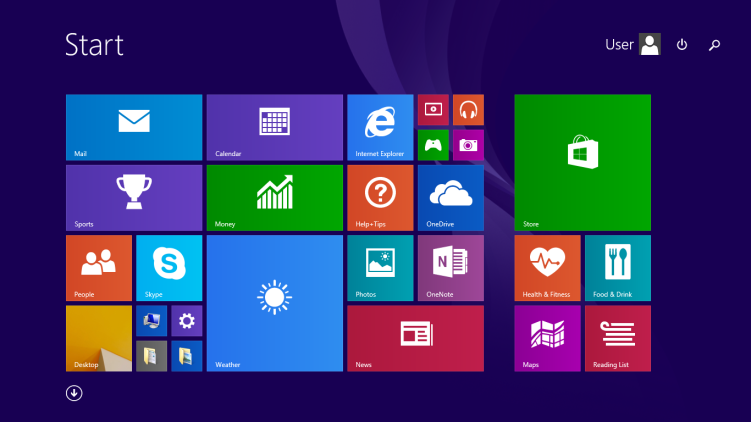
Windows 8.1 start screen from Wikipedia.org
Picture it. 10PM, January 9, 2023.

I just had let my dog out to water the mango tree for the last time in the evening.  I was sitting on the edge of my bed in a pair of black boxer brief shorts.

Yes, boxers, not briefs.

I had done something I rarely do.  I started Windows Update.

Mind you, I'm not certain I got the software I told it to download.  I am no longer a Windows person.

That computer and the one I am using right now are older.  As in this one has a sticker on its bottom that says Windows 8 Pro.  I'd put the date some time in 20-Teens.  The one I updated was older.  Early 20-Teens.  Windows 8.1 was released to Manufacture as of October 2013 according to this Wikipedia article.

That old machine with the Windows on it is my only machine with Windows.  It pre-dates Windows 8.1  I think it was the original ugly block land of Windows 8.  That was about a year before on October 2012.  Hideous, huh?

I Don't Do Windows.  It runs like a "Lead Sled".

I'm on that slightly newer machine that is purring along running a current copy of Debian Linux.  Never a problem.  Never a quirk.  It Just Works.

Windows?  Meh. That's what I use to download Debian.

I used to be quite strong in diagnosing problems in it but when Windows 8 came along, it started to have far too many "Phone Home" issues for my own personal tastes.  I began to wean myself off of it around 2013 and really only use it for the annual slog through tax season.

Hmm... Maybe I need to look into that.  My taxes will be fairly simple anyway.

At any rate, If you need help keeping your old computer going, you have a few choices.

First, you can buy a new machine and an external hard drive.  Copy your stuff onto the hard drive from the old machine, then get used to which ever operating system you choose on your new one.  Windows 11 or perhaps a Mac.  Copy your stuff onto the new one and live there.

Second, you can ignore the "Consequences could be Dire" crowd and get lots of exposure to exploits.  Don't take that machine to the coffee shop.  Once you leave home with that you're bound to eventually get hacked.  Limit your surfing on that machine as well.  I think I heard that they are planning on stopping virus scanner updates there too.

Third, do what I did.  I backed my needed stuff up, then installed Linux on the machine.  I have an encrypted hard drive, a desktop that I have made to look like my old Windows 7 desktop so it is pleasantly familiar, and when I get a newer "Corporate Handmedown", I can repeat my own install routine and have a new-to-me computer in about 2 hours.

I have done that upgrade twice within the last year.  Each time took about 2 hours.

If it weren't for my own sports and nutrition interests I'd be using Linux on an older phone and telling the hackers and both Apple and Google to kiss my fuzzy butt.  I use very few apps on the phone anyway because I find all that walking blindly into a phone pole because social media bleeped at me very pointless.  The software that talks to my sports watch however is very important. 

After all, I am at 23,867 miles total career miles on my inline skates.  Having that watch makes counting distances so much more simple.

So good luck with whatever you do.  I can help you to the right direction with safeguarding your data, I still consider myself very security aware.  But as for Windows?

Image of Hazel from TV Guide
Like the Hazel the Maid might say: "I don't do Windows."

Wednesday, March 2, 2016

Netbook Server - Sharing an External Hard Drive in Linux

So if you have followed my instructions, you now have a:

Computer that runs Debian Linux

http://www.ramblingmoose.com/2016/02/the-netbook-server-installing-debian-or.html

Computer that you can look into using Remote Desktop

http://www.ramblingmoose.com/2016/02/the-netbook-server-you-need-to-be-able.html

Computer that you can share part of the local hard drive

http://www.ramblingmoose.com/2016/02/the-netbook-server-how-to-actually.html

Congratulations.  You now have a file server!

If you followed those directions, it also installed a bunch of other programs that will let you do other things.  I noticed that something called "CUPS" was installed, and that will let you plug a printer into the same machine and act as a "Print Server" or a "Network Printer" - if you can find the instructions on how to configure it.

Debian and Raspbian both come with enough that you could use that machine as your one and only daily driver computer.  The browser is called "Iceweasel" and is Firefox, rebranded.  You have Libre Office to write letters, work with spreadsheets, and make presentations that are all compatible with Microsoft Office. 

Yes, it really is, I use it every day.  No, you don't have to pay for it.  Ever.

There are more apps, and I would suggest looking into some of the software that is out there, all free.  If you start "synaptic" from your terminal as root or "sudo synaptic &" you will find so much free software that your mind will fog up and get tired before you find everything you want.

But that all is just the preamble to this discussion.  You came here to share an external drive.  This is like any other shared drive on the network, you have to have it plugged into the server (USB Port on your netbook), you have to tell the computer where it is, and you have to tell it how it is to be shared.

Remember, I am trying to write this for a Windows audience so I'll go as basic as I can.  You Windows folks are in a new world, and you will want to have this go well.  If you are a Linux expert or even intermediate, you may find this needlessly wordy.   Not to worry, you'll be right.

One Step At A Time.  Divide and Conquer.

First step - Make sure you can read the drive from Linux.

Before you get anywhere, start the computer.  Log in.  Get to your desktop.  Then plug in the drive. 

Start your terminal session by clicking on the (start) "Applications Menu", then click on Terminal.  Sign in as root by entering "su" and your root password.  You will eventually need this

Now, launch the file manager by clicking on the (start) "Applications Menu", then click on "File Manager". 

In the left pane of the file manager you will see Devices, Places and Network.  In "Places" your external drive will come up with a little eject arrow to the right of it.  Click on the icon for the drive.  A little wait icon will start to rotate.  When it is through it will do one of two things:

Success is if you are dropped into a view of whatever files are on the disc.  It means that all the drivers are in place.  Most likely this drive is something called "vfat" or "fat32".  Remember this for later.

Failure is if you get a big ugly warning message up.  That means that you don't have the drivers for the format that the drive has on it.  Most likely you will have to install the set of drivers called "ntfs-3g".  This would be where your external is a really big drive and you did it to make things faster.  To install that do the following steps:

  1. apt-get update
  2. apt-get upgrade
  3. apt-get install ntfs-3g
  4. shut down the server
  5. unplug the drive (It isn't shared yet and you don't want to wait for the computer to release it)
  6. start the server
  7. and plug in your drive when you have logged back in to the desktop, terminal, and file manager.

No matter what, at this point, you should be able to read your external drive. 

You also need information.  When you worked with the server software "samba" you created a user and a password, and you will need that later.


Next step - finding where Linux thinks that drive actually is.

-- Update --

While researching my next blog article, I found a much easier way than the dmesg and so forth method.

In your terminal app, as root, enter the following command - fdisk -l 

You will get your list of drives, and what Linux thinks it has.  Different versions of linux will either make the drive available or not (Mounted or not mounted drive) so look for the last drive and make a determination for yourself what it is.  

Of course checking dmesg (as below) will be a sure way of finding out what you last plugged in, then doing the fdisk -l will tell you what you have on the drive.

-- end update --


Here is where Linux people will be saying "gparted".  If you know how, go for it, this is the slower but less risky method.

To determine what is plugged into your machine type into the terminal:
  • dmesg | tail -30
Linux keeps a log of whatever is important to the system.  Since you "just" plugged that external drive into the computer, the last thing on that very long stream of text will be what was reported when the computer detected the hardware.  The "tail" bit will tell terminal to just show the last 30 lines of what are in the display of messages (dmesg).

The clue there are the lines that say "usb 1-2" and "sdb".  When I plugged in the drive, it said "new high-speed USB device number 2".  So what we're going to tell the system is that the drive is sitting on a device called sdb.  The partition we will be using will be the first one, so it is officially "/dev/sdb1".  In windows, it would come up as your D drive if there is no DVD/CD drive present, E Drive if it is, this is the same thing.

Since my stick is formatted to be removable on Windows, it is a format that Linux calls "vfat".    My big 4 TB drive is formatted NTFS, so I would have to mount it as "ntfs-3g"

Create a place to store the data in.  In my case, it is "/home/bill/external".  You should change "bill" to the name of your user that you logged into when you started this exercise.  To make the directory, open terminal again as a regular user and enter this command:
  • mkdir /home/bill/external
  • chmod 0770 /home/bill/external
You just created the directory and set it up so that you and root can use it.

There is one file that you need to edit in Terminal with the following command:
  • nano /etc/fstab
This file tells linux where all of your disc drives sit, so be careful and don't delete anything.  You will be adding a line, as below:

  • /dev/sdb1 /home/bill/external vfat defaults 0 0"

That says - put the external drive's first partition "in" the /home/bill/external directory.  It also says that it is "vfat" format so change that if it is an ntfs-3g format.  The defaults are lengthy and you can go into them in great detail on the Wikipedia Article.


If you wanted to go further and add multiple partitions for other people, you could do it in /etc/fstab by adding multiple entries.

Once you restart the computer, you should be able to find the drive on Windows, and you are on your way.  Just find the drive in Windows File Manager, enter in your login from Linux, and you're good to go.

One final wrinkle

What this does is to "bind" the external hard drive or memory stick to the server.  It is now set to automatically mount and share the drive whenever the power comes back on.  If you do not have a drive plugged in, Linux will boot, but put you into a terminal session as root into what is called "Single User Mode".  You can do the following edit at that point with the commands below.

To remove the hard drive so that the server is no longer looking for the drive at boot, in terminal as root:

  • nano /etc/fstab
  • find the line with the external drive and enter a # as the first character in the line
  • save the file and restart the computer

This now turns your server into a machine that only serves the local hard drive.

Wednesday, August 19, 2015

Windows 10? Not Yet.

I've been holding off on this one.  The computers I have run adequately fast on what ever operating systems I use to get my own personal and professional work done.  It is a mix of Windows 8.1 and Debian Linux - primarily Linux by proportion of use.

I've been told that I need to adjust my "Tinfoil Hat", that I'm overreacting.

No, I haven't drunk the Kool Aid and I don't have to.

Here's the deal.  A month or so ago, people were given the option to download a copy and install a "Free upgrade to Windows 10 Home".

Microsoft doesn't give anything away for free.  There's always a hook, even if you have to look deeply for it.

In the case of Windows, it's best if you remember that "If you aren't the customer, you are the product".  I am directly quoting one of my friends who is one of the biggest critics of Android.

I have no doubt that Android is a case of Google simply watching everything you do, and using it to build a profile of you, personally.  It may be to serve advertising.  It may be for future use.  It may be for a friendly or not so friendly government.

Android costs money to make.  Those people have to be paid.  They're doing it by selling that information to a shadowy "someone" who could be as "innocent" as an advertiser. 

I hate ads.  Did I say that?  I have never clicked on an ad in all the years that I have been using computers intentionally.  Have you?  I doubt it.

Anyway, that free version of Windows 10 Home is exactly the same thing.  Every time you do something, you're being watched.  Even on the Pro version of Windows 10 you have to go in and turn that garbage off.

Thanks, I'll pass.  Windows 8.1 has a bit of life left in it.

It might surprise you to hear that if you read this blog at any depth.  I use Windows 8.1 Pro with a program called Classic Shell to give me back a Windows 7 look and feel.  Any time I have to go back into that ugly block land called "Metro" or Modern Interface, I'm jarred with just how hideous and inefficient it is. 

But I'll stay right here.  I don't use any Modern programs and for that matter, everything I use on Windows is Free or Open Source.  The GPL License seal of approval.

You can tame the evil kitten called Windows 10 Home but then you have to do without the Microsoft Store. 

Just one example of one issue of many that I have with Windows 10 Home.  It has been shown that your personal typing style is distinct enough to track your self to your specific computer.  Microsoft wants you to help it improve its typing recognition.

Per Lifehacker:

Send Microsoft info about how I write: This feature improves text completion suggestions when you handwrite or type (presumably on the touch keyboard, though it doesn’t say. That’s very broad, and we’ll talk about it more in a bit. I recommend turning this off.


If you want to play Solitaire because you got hooked back on Windows 3.1, you can do so with ads.  Same thing with Freecell. 

There is an advertising ID number that basically stays with you.  If you didn't like the idea of an advertising company tracking your every move, why would you want Microsoft to do so?

Actually, you can find it on your old Windows 7 machine, copy it across, and I'm told it works.  I don't know first hand since I've got too much to do than to play Solitaire on a computer.  That's the kind of thing I'd do on Hold with a Client, and I don't stay on hold long if I'm there.
So to those of you who don't like the prospect of being watched, you can pay the $100 or so and upgrade to Windows 10 Pro and then look into locking it down.

For me, I'm staying put.  The other machines I have are happily on Debian Linux.  I know Linux well enough to make it do what I need it to.  No ads, No spyware, and it's all free, including Freecell.

One of those rare cases where you don't have to worry about evil software getting involved on your computer.

Thursday, March 12, 2015

What is Foistware or Crapware, and Simple Tips To Avoid It

With five different operating systems running here on far too many computers, I see it all the time.

I'm That Guy.  I'll say it this way:  Yes, I can fix your computer, but I won't do it for free.  I'm done with that free stuff.

On the other hand, I hear this too many times.  Someone went out and got a new computer because it's too slow.

The "new-to-me" computer I am using to write this on is a 5 year old.  It's running Windows 8.1 and it's running it quite well.  The one I do most of my professional work on is a 7 year old beast running Linux or/and Windows 7.  My file server is a 12 year old laptop running Windows 7.  That runs well too.  Laptops consume less power and space and do the same job as that beast of a desktop I used to love to build back in the day.

You say "Sure, but you know how to make it go faster".

Yep.  It's simple.  I don't allow software foisted on me.  Crapware.  Foistware.

I was giving someone an old computer once who was staying for a few days.  Recently.  The day after he got the computer he had two pieces of Foistware already installed.

He got it when he went to install Skype.  I guess he wanted to be spied on, but he also wanted to talk to people in his family that was scattered all over the globe.  So I told him to go find the download and install.

Wrong person to do that to.  He went to a "Partnered Download Site" I was told.  Red lights and fire engine sirens went off in my head.  He ended up with a toolbar on the browser and a redirected home page.  I growled at him, fixed it, then sent him on his way.

Two very simple rules to avoid this kind of garbage.

First, make certain you are going to the software vendor's approved site for downloads.  That means it's going to require you, and not someone else, to do the research for you.  Skype is pretty simple, it's a Microsoft product, so go to Microsoft to find it.  That takes care of the honest software producers.

Second, always, and I do mean ALWAYS, when you are installing the software use the Advanced install.  When you are installing, actually read the page that is presented.  Don't simply click "Next".  That's how you get the crap installed in the first place.  That helps to take care of most of the dishonest software producers.


You don't ever need a toolbar on your browser.  If you get one, remove it through your control panel's "Programs and Features" list of programs.  There are way too many programs to list here, but you will then be able to remove the "feature" by double clicking on the name of the program.  Other more evil toolbars are actually more like a virus, and you will need to do research on how to get rid of them. 

If it truly is a virus, it gets much more complex, but here's one way of fixing all that garbage.

That is the same place you can go to when you find yourself with a program needs to be removed, such as anything is riding along and doing "useful" things like presenting you with ads or anything by McAfee.

Why do I mention McAfee specifically?  Adobe Flash.  If you aren't careful, when you do a security update for them, you will end up with the helpfully named "McAfee Security Scan Plus". 

You don't need it.  More "Foistware".  All this "Foistware" slows you down.  You can get rid of it, or you could get a new PC and start over.  One requires less time than the other.  Since many computer stores that you can actually visit have a nasty habit of trying to upsell you to a more expensive model, you should try to delay that particular task as long as possible.

Basically be careful and watch what you're doing.  It is, after all, your computer.  Just because a particular NEW! and shiny piece of software is "suggested" to you by something you actually want, doesn't mean that you need the blasted thing.

In return, you may be able to skip a new computer next year.

How great would that be?  An extra couple hundred bucks in your pocket?  Or Pounds, or Euro?

You'll thank me later.

Wednesday, January 28, 2015

Youtube Prefers HTML5 Video to Flash - But What About All That Old Stuff?

Flash is one of those necessary evils.  It was like Java, reflexively installed onto computers that weren't really quite up to the task of running it. Just checked, nope, I don't have Java - and you should not either.

The computer would bog down, act cranky, and even crash when Flash was running.  Flash also has persistent cookies that you had to remember to delete.  Some people would have those cookies for years.  Security is a bear.

But there is one more nail is in Flash Player's coffin.  Youtube is now preferring HTML5 over Flash when you watch videos there.

Why is that important?

More and more Flash had been the target of people wanting to hijack passwords, insert viruses, and track your movements with those persistent cookies.  Adobe had put more and more patches into it and it became a joke.  Start the computer, patch Flash, restart the computer and do your work - every single day. 

Worse, some people that I supported would simply tell the update check to go away and never come back.

You are getting closer to the day you can do that for good. Many of us already have.

My Linux computer, currently Xubuntu, is not even supported on current Flash Player, and I did an uninstall of it a couple weeks back.  I didn't see the value of keeping an old piece of software on something that was running well without it and I almost never used.

My windows computer will get the same treatment.

About the only thing I ever do with Flash is to watch videos on Youtube.  The few games that I have kept over the years will get deleted.

That's about the only problem that I see with this.  Videos can be streamed using "native tools" but the content that was created in Flash will simply go away.  Quite a lot has been created in Flash over the years, even a few Broadcast TV Programs, and many commercials as well.

After all, when was the last time you played a video tape?  Beta?  VHS?  Vinyl Records?

That is the kind of problem that Librarians have.  Content on a platform that is unsupported.  Music on Cylinder Beeswax Records from the Edison era.  78 RPM records.  Heck, I even have a few 45s floating around here.  Silly looking 7 inch donuts.

For most of us, it's simply easier to find the track elsewhere and save it on something new.  But for librarians, especially archival libraries, they have to worry about that sort of thing every day.

Anyone still have and use a zip disc?  Nope?  Didn't think so!

So the net result to you is that if you are running one of the four major browsers in one of the top four major operating systems on the desktop/laptop you're fine.  Just make sure your browser is up to date.  Firefox, Internet Explorer, Chrome, and Opera all work with HTML5.

See, that's easy!

The iPhone and Android based phones will typically use the Youtube client or the browser will take care of it.

One aside though, with Android, it's usually recommended that you do not use the base browser and go out and grab either Firefox or Chrome.  The reason is that if you are on an older version of Android, Google is not going to support the old "Browser" browser.

So it's just safer that way.  Listen to big brother even if it is a bother.

Ok?

Wednesday, January 14, 2015

Windows 7 - You Have Five Years Left

Start the drum beating.

Microsoft reminded us that yesterday, January 13, 2015, that they stop all support for Windows 7 on January 14, 2020.

Now for most people they will yawn and move on.  After all they will wear out the cheap $250 laptop they are using now and move onto another cheap $250 laptop by then, sliding it under the bed or into the closet and forgetting about it until cleaning day.

"Hey!  I need to do something about that old computer!".

For large businesses who haven't even migrated onto Windows 8, they will look at the notices and hopefully begin to plan.  It is five years in the future, and while you still can get Windows 7 today, the machines they buy today will still be in use in three years, and possibly five.

Most people just shrug and accept the operating system that comes with the computer anyway.  It's easier and you don't have to worry about it until it gets too many viruses and you start looking for an answer.  At $200 per "In Store" virus removal at a big box store's "Squad", it is probably cheaper to just "move on" and get new at the low end.

It's not one of those doom and gloom things, after all.  You have five years.  The machine you are using to read this blather will most likely be "recycled" but it is something to consider.

If you are one of those poor folks who has soldiered on with Windows Vista, you have until April 11, 2017 - a mere two years and a bit.  Then the most hated operating system since Windows 8.0 will be completely unsupported, just like the dearly departed Windows XP.

To be fair, once you get all the Service Packs, Bug Fixes, and Additional Changes installed in Windows Vista, it works fairly well.  It's just bloated, slow, and you'll be better off on Windows 8.1 as well.

But for Windows 7, this means that you will still get patches, just no new features.  Virus updates, bug fixes, and any other patches will get sent along as usual, but nothing really new.

Oh, and about that old computer?  If it runs Windows 7, it probably can run Windows 8.  If it runs Windows 7, I am certain it can run some variation of Linux, and if you really are nervous about support, some of those server versions of Linux are supported for another 15 years while others get another 5 with easy upgrade paths.

After all, that is what this blog is written on - Linux on a hand me down computer.  But Linux isn't for everyone, even if I did train a 69 year old lady and her 35 year old son how to use it. 

Great story for an interview, though!

Tuesday, January 13, 2015

Microsoft Discontinuing Their Advanced Notification Service for Patches

Not the best news to come out of Redmond in a while. 

For Mom and Pop, they'll get the news the way they always had, their machine will restart on a Tuesday or Wednesday, they'll ask someone what is going on, and they'll hear "Patch Tuesday" out of their grand kids or their children, shrug and go on.  It's all automatic, isn't it?

For Businesses and IT support people, this Advanced Notification Service is more important. 

What happened was that it gave someone in the know the advanced notice that Microsoft was going to push a patch to their computers at some level on Patch Tuesday, typically the Second Tuesday of the Month.  It would tell them what the patch would do, and let them know some more background info on the patch.

Great.  It would also warn these people that if your computer is broken when it forces a restart, you may have to back out the patch and restore to an earlier time.  It may allow them a cushion of time to test their servers, create extra backups, revisit whether their computer security policies are up to date.

That Good Computer Hygene is a part of Information Technology.  They're made by people, people sometimes have an oops.  Best to let them know what's up and give advanced warning.

The reason you need this information is that it's entirely possible your entire business sits on "That Computer In The Corner".  They may not know what it does, but they do know it's an important box.  They may call it The Server in hushed tones, and give it offerings of tapes from time to time.

They hopefully have backed the machine up, made sure that they could gracefully reverse changes and so forth.

For my own sanity, I turned off automatic updates years ago, and keep turning it off every time I get a new machine or upgrade one.  I then make it a point to manually go to Windows Update and get "up to date" a couple days later.

The reasoning I have behind that is that while Microsoft is diligent in making sure that things work, their tests don't involve the machine that is in my lap in this exact moment.  That patch may be great on the box sitting three timezones away, but it may break when it gets to me, specifically. 

I tend to be on the trailing edge with Windows Update for that reason.

The blog posting that Microsoft made did say that the service will be available for a fee so their largest customers can manage their server farms with the information that isn't getting out so widely.

Information leaks, it's like carrying water in a leaky bucket.  Information will get all over your shoes and water the grass on the way in from the well.

But it does make things a bit less secure since Information is best used when it is widely spread.  It also puts the onus back on the individual or the person in the business who is charged with maintaining them.

Hopefully everyone has their Backups and their Restore Points set, right?

Oops. Caught myself there. It has been a week or three since I have done a proper backup.  Happens to the best of us and the rest of us.

While Manually updating Windows Update is what I personally do, it is a bit annoying and it is something you have to remember to do.  On the other hand, Automatic Updates is a bit like flying in an airplane without a seatbelt.  It is safer to fly than drive, but once in a long time something happens and you hit some turbulence.

It's all up to you and that is what I think Microsoft is telling us - Security through updates are up to you, after all it is your data and your computer.  Just be aware best practices and of what is going on around you.

Tuesday, December 2, 2014

New Firefox and Other Browser Update Weirdness

I'm settling in to get some things done and notice a blurb.

There's going to be a rollout of the next Firefox over the next few weeks.  I pay close attention to that because I use Firefox extensively.  I'd be lost without it. 

I'm so tightly trained to use Firefox that I have to step back and actually "think" how to use any other browser.  Since I use Windows 8.1, Windows 7, Mac OSX Mavericks, and Debian Linux on a daily basis as well as Android and an occasional toe dipped into Apple's iOS, I have to remain as flexible as possible and Firefox is on all of those computers. 

Except the iPhone but I hardly ever use them.

I will eventually install Firefox on the Windows machines when it tells me that it is available.  I'm not in a rush.  The last time they changed the way it looks, the User Interface or UI, it borked it for me.  I ended up installing things to make it look the way it did before I updated the browser while growling at Firefox in general.  Keystrokes and mouse clicks and all that moved.  They removed the status bar. The bookmark strip got lost, or rather hid, and that stores some of your bookmarks.  They removed the title bar.

Why?  Never heard a reason, but I installed Classic Theme Restorer and it brought it all back.  Immediately after that I installed Adblock Edge to get rid of the blasted adverts and other nasties that hitch a ride onto your computer as a result.  More Privacy means for a faster experience as well as fewer viruses and spyware pushed onto your local computer.  Nobody actually "Likes" ads anyway, we accept their presence and usually are annoyed or distracted by them, but "Like"?  I doubt it.

Rule Number One of Software User Experience (UX) is if you change the way something looks, you will break the way people work.  I learned that back in the days of the Mainframe and College. 

Rule Number Two of Software User Experience is that if you do change it there will be unintended consequences.

In My Case:

I have a computer that has what they call a "Clickpad".  It's also running Debian Linux.  I know Linux in general fairly well, but Debian Linux doesn't manage Clickpads well.  Clickpads are those weird trackpads that are flush with the case.  You click on the pad instead of having normal buttons like every other Synaptic trackpad. 

I do know that is fixed in the next version of Debian, and I do know how to fix it now, but it is an annoyance that I have to deal with.  It basically forgets that it has a physical button in Debian Stable/Wheezy, and you're stuck with whatever you touch on the trackpad.  I only get a Right Click when I tap.  I have since configured a two fingered tap to be a Left Click.

What that all did change did is to break the way Firefox works.  You see, on that particular computer, I can't Right Click.  I can't get the pop up context menu.  They changed the UI right away from it. 

Since that machine is Debian Linux, I have to wait for the next version anyway.  It isn't even using Firefox, but something rebranded as "IceWeasel".  To put it short, and sarcastic, Debian had a spat with Firefox over the branding.  Since Firefox/Mozilla doesn't want anything proprietary at all on their default install, someone in the Debian Project grabbed the source code, recompiled it, created the graphics, and renamed everything to IceWeasel.  It works like Firefox but is Older.  About a version back. 

If you're running Stable, or Wheezy, you could be quite a few versions back.  Jessie has a more current Firefox, but it also has a lot more annoying bugs in it because it is "Testing".

But Windows?  Yeah, you'll get it soon.  Just remember Classic Theme Restorer and Adblock Edge, and you'll be fine.

As for the Mac?  When it is available, you'll get a blip on the bottom of the screen telling you you're ready for an upgrade.  You can also go back to the old theme if you want, but I do recommend Adblock Edge as well.

Why the harping on the ads?  It's a much faster browsing experience when you surf a page without the ads.  No blinky pictures, crawling things, or text ads.  If you don't download them, you use less data.  Things pop faster.

Trust me on that one.  You can always turn it off later.

Thursday, November 20, 2014

Computer Hygene 101 - Checking Your Disc For Errors

Every so often you'll get a message that your disc drive may have corruption.  Windows has been getting better at automatically checking this sort of thing, but sometimes it gets confused and you may have to do it on your own.

Since I live in the Florida Power and Light area of Florida, and we get a lot of what I call "Power Pops", we also get a lot of files that get corrupted.  Since hurricanes have hit South Florida before, the infrastructure here can be quite creaky and things surge and break.  That "ate" two of my computers when I moved down here and I have two different filters on this computer I am typing on.

My own opinion is that a computer is safer on a power strip or an "Uninterruptable Power Source", and a laptop will tolerate power fluctuations better because the wall current runs through a brick that takes some punishment as well.

From time to time you may have to run a "chkdsk" on your hard drive.  That's a program in Windows that will look at the hard drive and attempt to fix any errors found.  My own opinion is that if chkdsk can't fix it, you're best to consider your options - however make sure you have a good backup of what is on that disc. 

After all Data is more expensive than Hardware!

Since Windows 7 and Windows 8.1 are slightly different in the way you run chkdsk, I'll treat them separately.

Relax, it only looks difficult!

Windows 7:

  1. Click on the Start Button - or hit the Windows Key on your keyboard.
  2. Click on "All Programs" to expand the menu.
  3. Click on Accessories to expand the menu.
  4. Find Command Prompt and Right Click on the item.  You will know you have done that correctly because you will get a pop up menu to show. 
  5. Click on "Run as Administrator".  This will let you have more control over your computer.  It also will allow you to do things like delete your windows files - so be aware of what you are doing.
  6. "User Account Control" will grey your screen and pop up a window asking "Do you want to allow the following program to make changes to this computer?".   Click on the "Yes" button.
  7. The "Administrator: Command Prompt" window will open.
  8. In the command prompt, type the following command:  chkdsk c: /f and hit enter.
  9. You will get a message saying "Chkdsk cannot run because the volume is in use by another process.  Would you like to schedule this volume to be checked the next time the system restarts?  (Y/N)"
  10. Type: y 
  11. Hit enter.
  12. Type: exit
  13. Hit enter.
  14. Restart your computer. 


Windows 8 and 8.1

  1. Go to your start screen.
  2. In the upper right there is a search box.  
  3. In the search box type: cmd
  4. You will have a list of items.  Find Command Prompt and Right Click on the item.  You will know you have done that correctly because you will get a pop up menu to show. 
  5. Click on "Run as Administrator".  This will let you have more control over your computer.  It also will allow you to do things like delete your windows files - so be aware of what you are doing.
  6. "User Account Control" will grey your screen and pop up a window asking "Do you want to allow the following program to make changes to this computer?".   Click on the "Yes" button.
  7. The "Administrator: Command Prompt" window will open.
  8. In the command prompt window, type the following command:  chkdsk c: /f and hit enter.
  9. You will get a message saying "Chkdsk cannot run because the volume is in use by another process.  Would you like to schedule this volume to be checked the next time the system restarts?  (Y/N)"
  10. Type: y 
  11. Hit enter.
  12. Type: exit
  13. Hit enter.
  14. Restart your computer.

Thursday, November 13, 2014

Hit Windows Update Yet This Week?

Oh yes, I will admit it, I am stubborn.

I don't like people monkeying around with my computers which is why I told my windows computers not to go out and grab the windows update patches automatically.

Mind you, I did tell it to tell me when it wanted my attention and check for critical updates.

Small semantic point, but I prefer to be the person who pulls the trigger, and not the trigger that gets pulled.

However...

If you are like me, today is an excellent day to go to your favorite start button, find your Windows Update link in there or in Control Panel, and do a Windows Update.

They fixed a 19 year old bug that is in every version of Windows including and since Windows 95.

I tend to do my own checks later in the week, on a Thursday, although I have been getting reflexive about just hitting the damn button and doing updates whenever I think about it. 

You know, sometimes when you're bored and you just want to do something that needs to be done and don't want to really think about it?  I rearrange the deck chairs on the Titanic my own way, thank you very much!

The reason why I wait a day or two to do it "officially" is simple.  If you have your system go out and grab the updates as soon as they are there, which is typically on the second and fourth Tuesday at 1 PM in the Eastern time Zone or 6pm in London, and you restart your computer, you may have a bigger problem.  Once in a very long while, some of the same patches will break your computer.  It may not start.

So give it a day or three.   They may have to fix their fix after someone else broke it.

I know, eventually a person just has to shrug and say life moves pretty fast. If you don't stop and look around once in a while, you could miss it. Ferris, do your updates and take your chances.

Today is my turn.  Actually later today is my turn.  I've been on Linux for the last two weeks and there's a very different way of doing things there. I get a little sunburst in my control strip in the upper right and it tells me to go look.

Wait, Bill, How is that different?

It just is.  Now go check Windows Update, just because.

Wednesday, August 27, 2014

Outlook.com - How To Block Messenger

Microsoft, please don't annoy me before 6AM.

I had gotten in after the dog walk, settled in for some iced tea, and wanted to check my email once the computer got started.

Using www.outlook.com has never been a pleasure for me.  I want an email service that stays out of my way with extra "features" that I don't want.   Having a chat service tied into an email program that is a bloated mess was not my choice.  Even Hotmail.com was better than the steaming pile of garbage that Outlook.com has been bloated into.

At the lower left of the browser screen was a helpful "Messaging" area with little icons of people who I have written in the past.  I found myself immediately looking for a way to turn it off.  After wasting a half hour in the "Byzantine" settings menu in Outlook, I went to do a search for how to do it.  I found this page suggesting that I add an entry into a low level file and restart my computer.   The low level file is a text file called "Hosts" that your computer reads in when it starts.  What Hosts does is to override networking.  

In Windows it is at C:\Windows\System32\drivers\etc and Linux keeps it at /etc/hosts which would be where I would expect to find it on Mac OSX.

Some very basic and oversimplified networking concepts.

If you type in http://www.ramblingmoose.com your computer doesn't know what that does. It consults your network stack, finds the gateway, and then talks to your internet service provider.  In this case it looks at a giant phone book called your DNS and gets the IP Address of the site.  Since my blog points to a blogger site, that number changes, and it's hosted by Google anyway. 

But I can change that.

If I bring up Hosts in notepad or any other TEXT editor, I can add in a line saying that a specific IP address is to be used when you go to a specific web address or URL.

For example, if I want to block Google, I add a line to the file:

127.0.0.1  www.google.com

Save the file and restart the computer.

This works for some sites that are advertising providers and other nuisance sites.  My own Hosts file is pretty large having gotten one that has most of those malware and advertising sites that were known at the time.

But all this is annoying to maintain.  Fortunately, there is an easier way to do it.

Adblock Edge or Adblock Plus in Firefox and whichever other browsers it supports.  Adblock Edge is always the first thing I add when I install Firefox.  It allows me to block ads, hide pictures, and even block whole websites (domains) if I choose to from a semi-friendly interface.

Simply add a custom "rule" to adblock to block the following URL:

geo.gateway.messenger.live.com

It would be a whole lot simpler if Microsoft had decided that it would give you a way to block that Messaging app within Outlook.com settings, but they chose not to.  Luckily I can turn it off and get some things done.

How to add a custom rule:
  • Ctrl+Shift+F will open a window called "Adblock Edge Filter Preferences".
  • Click on the "Add Filter" button in the upper right of the window.
  • In the blue box, enter geo.gateway.messenger.live.com and Enter.
  • Close the window by clicking the Close Box.
  • When you refresh Outlook.com in your browser, it will be blocked in that browser only.


Friday, May 2, 2014

Got Windows? Hit Windows Update - Even Windows XP

So that bug I have been banging on about?

The one that is a bug of doom, effects every version of Internet Explorer from Version 6 through present?

Windows XP
Windows Vista
Windows 7
Windows 8
and
Windows 8.1?

Yeah, the fix is in.

Microsoft has relented since 1/4 of the entire PC Market is still running Windows XP.  Not to patch this one would cause havoc on the Internet and crash web servers, and make little babies cry.

This morning, I started finding messages in the security blogs that mentioned it.  This bug, the 1776 bug, with a rather nasty hole has been exploited.

As far as XP is concerned, Microsoft has said in the past that while support has ceased for it, they may at their own choice make patches to it in the future.   Since this was a big one, and it is the future, take advantage of it.

Even if you don't use Internet Explorer, you will want to get this fix.

The steps are simple.  You may have already downloaded the fix and there could be a message waiting for you to either shut down or restart your computer to apply the fix

If not, just:

Click Start
Click Control Panel
Click Windows Update
Click Install Updates

and you're on your way!

Now, if you will excuse me, my computer wants to be restarted.  I guess I really do need to take a break anyway!

Thursday, May 1, 2014

Annoyed With The New Firefox Look And Feel? Here Is How To Fix It.

Ok, this isn't a Hey You Kids Get Off My Lawn thing.

Change is sometimes good.  When someone looks long at how something works, makes a tweak, you will know if it is right.

If it isn't right for you, then sometimes there is a way to fix it.

When I was presented with the opportunity to give my computer a wholesale upgrade, I thought long and hard about going to Windows 8.1.  I don't like it, many of us don't.  So why bother?  I installed Classic Shell, and now my Windows 8.1 looks like Windows 7. 

I did it because the new full-screen Modern or Metro apps are useless to me, the live tiles are worthless to someone who lives on the Desktop, and they are a vector for advertising that I have not found a way to block.  I completely uninstalled most of them and since I work very heavily on the desktop, I feel no loss.

Windows 8.1 is faster, slightly, than Windows 7, so I'm enjoying the minor slight speed bump.  I'm still not liking it any time I have to jump into the ugly block land of the Metro apps, but it is only when I have to fiddle with the system that I have to go there.

Why the Windows nonsense on a Firefox post?  There's a reason.

Firefox changed the way everything looks on the newest update called "Australis" on Windows 8.1.  The old "shine" is gone.  Everything is flat and mostly "Primary colors". 

I describe it as simply ugly.  The old shine had a great effect, you could find things at a glance on a very busy screen easier.  Granted, you were trained to recognize that the individual elements were separated by color and separators were very visible as a dark line, the most current tab of a tabbed interface was lighter, the other tabs were darker, but did not blend into the background which was a third color.

There is a good reason for this.  Humans are good at pattern recognition.  This is why the "Big Dipper" is a constellation resembling a dipper.  It LOOKS like SOMETHING.  It isn't a random pattern, although in actuality it really is since some of the stars in the Big Dipper are much closer than others.

So when Firefox upgraded, they went with a new look and feel.   It looks very Windows 8.1 Metro Modern.  Which is to say "Flat and Blocky".

I don't like Flat and Blocky.  I have open dozens of tabs at any given moment, sometimes more than one hundred.  It slows me down.

If you want to fix that and find it ugly and want to go back to the old school way of doing things, thankfully Firefox recognizes that you still can.  It is even in their official documentation how to do so.  This update is all about giving you the power to customize the browser. 

Unfortunately they removed the add on bar at the bottom of the browser completely and that broke my weather app that I depended on heavily for current conditions.  I'll have to go out and write a webpage to monitor the weather itself.  While I could use the practice in HTML 5, I'd prefer it not to have been forced upon me.

You can follow their instructions here.

Simply put you will be adding an "Add On" to Firefox.  It will change it back to the way it looked "yesterday" before you did the upgrade by default.  Install it and you are done.  Add Ons typically work on all versions of the browser, although I haven't tried it out on my Mac or my Linux machines, I expect this will not be a problem.

All I wanted was my old square edged tabs back in grey with the current tab bright silver, and it gave me that back.

The steps are simple:


Don't worry, if you want to turn off Classic Theme Restorer, you can within its own preferences found in the Firefox Tools Menu.

It will install the theme restorer.  With that you can change a lot more of the way Firefox looks.  If you really do like the curvy tabs, you can put them back by selecting the proper theme elements.  My biggest problem is that the visual clues are not at all obvious with this new "Australis" theme.  The break between the inactive tabs is much less obvious and the result is that it slows me down.

With Classic Theme Restorer, I can put that back.  There is a Curved Alternative Theme that looks almost exactly like Google's Chrome tabs so if you like that, feel free.  I just tweaked it to look that way now, and my browser looks like a file drawer full of old grey Manila folders inside Pendaflex holders.

Skeuomorphism to the rescue!

After all, if customization was the goal, I took advantage of it.  I bent the browser to my will and customized it - back to the way it was. 

Useable.

Wednesday, April 30, 2014

Now Homeland Security Suggests You Stop Using Internet Explorer Especially With Windows XP

You know things are getting dicey when the Department of Homeland Security gets involved.

Personally I never liked Internet Explorer.   It's the browser that is baked into every version of Microsoft Windows out there since Windows 95.   The problem is that it's a single point of failure.   If there's a deep problem with the browser, your whole computer is at risk.   Slowdowns caused by Internet Explorer are common, and in my own experience it runs like a "Lead Sled".

I try to use another browser wherever possible.

Now a little more tech jargon.  You may have read about some shadowy problems.  A "Zero Day" or "0-Day" attack.   Simply put, it is an attack at that low level of your software.  You won't even know that you "got hit" and will be added to a hacker's portfolio.

Every version of Internet Explorer that is in use since version 2 is involved in this mess.   No matter what version of Windows you are using, you are at risk.  Since they aren't updating that old software, you really should have upgraded that old copy of Windows 95 well before now.

There is a fix from Microsoft, and you can now get it in Windows Update, and it didn't even whine at me to restart Windows 8.1.  Until you do there are a few things to consider.

First, get a second browser.   I prefer Firefox, others choose Chrome, still more choose Safari, and there is always Opera.   Pick one and use it.  It is your choice!

Second, if you are on Windows XP, you need to upgrade, Now.  Windows XP will not be fixed at this point.  Microsoft may go back on its word, but you are at this point vulnerable.

Third there is another wrinkle to this mess - Flash.  It's the most common way most people look at those cute cat videos and the video that I embedded below about this bug.  It has its own Zero Day exploit and needs to be upgraded to version 13. This Flash Bug is also a problem for Mac OSX and Linux, so I will have a busy day upgrading things around the house.  Basically everyone gets hit by this one no matter what computer you have!

With Windows7 and Firefox, you can check by following these steps:

  1. Start Firefox.
  2. Follow this link to the Plug In Checker.  It will open in a new page or browser window.
  3. Any plugins that you run that are out of date will show up with a red button on the right that says "Update Now" - click that button.
  4. It will open another page for Flash.  
  5. Click the check box to refuse the offer of McAfee Security Scan Plus since you just do NOT need that software.
  6. Click the Yellow Install Now Button.
  7. It will open another page, wait a bit, then ask you to save a program.
  8. When your download is complete, run the installer to update.  Flash does not do this behind the scenes.  You will find it in your downloads directory and you will have to run it separately.  The program it downloaded was called "install_flashplayer13x32_mssd_aaa_aih.exe" but it will change through time and versions.
  9. It will ask you if you want to install it, and personally I tell it to tell me to upgrade instead of doing it automatically.   Personal preference.
  10. When you get the green check and the "Installation Complete" message, you can click Finish.
  11. It will then bring up a message saying that you're done and ask you if you want to get this fantastic deal from someone who I can't see because my ad blocker has blocked it.   Shoo, Adobe, I don't want your deals!
Yeah, 11 steps but it goes quickly.

Microsoft has a fix out now for Internet Explorer, but you really do need to get a different browser.   One that supports ad blocking since they're also a vector for spyware and viruses.

The video from USA Today is at this link if you want to see if your Flash has been updated.


Friday, April 18, 2014

Bromeliad Blooms and Other Blather

When things get too hectic, stop to smell the bromeliads.

I guess I need to pay attention, don't I?  It's a case of having too many things happen at once.

I'm in the middle of reloading the PC.  A whole laundry list of things have to be decided.  I'm in there with all the Windows XP "expats" at the moment making those decisions.

Whether to go with Windows 7 or Windows 8.1.  Why go with one over the other?  How to make one look like the other?

I went with Windows 8.1, and immediately got some spyware onto it. 

If you install Windows 8.1 and don't want "Ugly Block Land" to get in the way of your efficiency, you will need to install Classic Shell.   It's freeware but it also comes with some nasty spyware that you have to be very careful NOT to install.  It isn't very clear when you are installing and if you don't pay attention you will be where I was, and get some spyware on it.  Immediately.

I.
Mean.
Immediately.

Windows update was running, for the second time, and all the sudden I got ads.   Now, anyone who knows me will tell you that I'm the fastest remote in the East.  When watching the TV, I have a 30 second skip button and I always, I mean ALWAYS watch TV via the DVR.

In other words, 30 minute shows last 21 minutes.   Commercials hit and I'm playing the skip button.  Someone tells me about this "great ad" they saw last night and I shrug and grunt.  "Iduhknow"

But Classic Shell will work for you and make Windows 8 and 8.1 look like Windows 7 while not removing your ability to play with ugly blocks in Microsoft's Ugly Block Land Interface.  That is if you don't get the ads on there.

It was then when I went to write about something else, my morning took a strange twist.

I didn't have a way to put text onto the picture I wanted to post.  Pretty Bromeliads, aren't they.   Windows 8.1 didn't want to install Photoshop, and I was getting frustrated.  Wanted some flowers.  Who does the computer guy ask when there's a problem on his computer.  Oooh More Bromeliads.  Photoshop installed?  Do we have "our" font?  Open the picture.  Ahhhh...

All that crap. 

I'll get my fonts off of my server, they're all open source and free so if you're looking for something distinctive I can let you know what I used.

So I can commiserate with you.  You Windows XPats.  They tell you your computer is now open to all sorts of viruses.   Mine was upgraded and I had to go through the same thing. 

Did you know the new Excel 2013 is butt ugly?   Purely flat and white?   You can change the white, but you have to find the thing that turns off the slide.  

The "slide"?

Yes.   When you move your cell from A1 to B1, it slides.   Someone at Microsoft needs to be slapped with a trout.   It is the Metroing and Creeping Smooth Scroll chaff that is coming everywhere.   You have a PC in your lap that could run the entire country of Jamaica's internal revenue service from the year 1983 and what does Microsoft do?   They make everything ugly, blocky, and slide-y.  It also takes some of your computer to make all that eye candy pop.  I really don't like that sort of thing.   Makes me impatient.

Windows 7 why did I forsake you?

Here's a Bromeliad to smooth your mood.  Let me type some nonsense in as a title, change the font to Gautami, add a pink stroke and some background glow.

There!  All Done!  Even if I did have to resort to installing Inkscape as a backup for today.

Now, where is my Photoshop CD?  I just might be able to finish that install.

I just don't see grandma figuring this stuff out.  But figure it out we will since this is the way things will go until Windows 9 happens in a couple months.   For now, just remember that Microsoft always needs three pitches to make a hit.  Four to make a home run.  Windows 8.1 is only Pitch Number two.  Windows 9, I am hoping, will be Pitch Number three.

Monday, April 7, 2014

Since Windows XP "Dies" Tomorrow - Hit Windows Update Today

Consider this a Public Safety announcement to my friends and readers that see this today. 

Tomorrow is the big day.  Microsoft stops supporting Windows XP unless you are the US or UK government or some other organization that pays for extended support.  This may change, but better to be safe than sorry.

Today I went in and checked and there was an update for my Windows 7 computer, a new definition for my anti-virus program.  Since I use Microsoft Security Essentials, which is built in to Windows 8 and 8.1 and available for download on Windows 7 like me, and Windows Vista - and TODAY ONLY on Windows XP, it was there.

In fact I did a "double windows update" just to be sure and there was a second definition update for Microsoft Windows Essentials.  So I installed it.

You people still running Windows XP will may not be able to get it tomorrow, even though Microsoft says that they will provide updates for a "limited time" for XP.

The rest of us are fine.

Why the rush?  I'm saying "Better Safe Than Sorry".  You just don't know what happens when someone does something major.  The whole Year 2000 bug was one of those things.  It wasn't a major problem because so many people worked so many hours to make sure it would be nothing.

With Windows, you hit the start button and look for the Windows Update link on your start menu.

It is also in your Control Panel, if you can't find it on the start menu.  Windows 8 and 8.1 will have to go into their start page and find control panel themselves.  It will drop you onto the old school Desktop and then launch Control Panel.

Very sloppy, Microsoft.  Very Schizophrenic design.  You could have done better.  Try again.

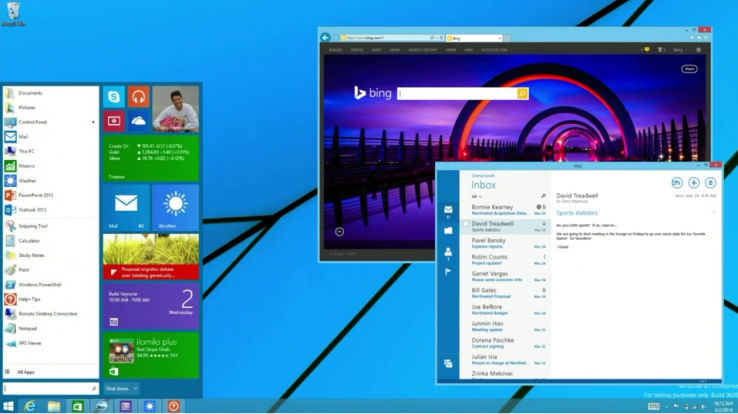
Oh wait, you just announced that you did.  You're bringing the start menu back.  Good boy, now go sit back at your desk and give me that nasty Dunce Cap.

Really... tsk tsk tsk.

I suspect that basically they're throwing a bone to people and saying that they will make their new Windows 8.1 work like their older windows simply because so many people disliked Windows 8 and 8.1.  As of this weekend more people were still running Windows XP than there were running Windows 8 and 8.1 together.  Windows 7 has the largest market share.

Now, if we could only convince them to make Internet Explorer go away - or at least be faster.  I swear sometimes it takes a minute just to repaint the page that I had up on it when I clicked Minimize let alone go for the next link and I have an i7 computer.

Thursday, April 3, 2014

Windows 8.1 Start Button is Returning

They relented.   I suspect that part of the reason why Steve Ballmer, the former CEO of Microsoft was invited to retire was the flop that is the whole Windows 8.1 Metro interface on a desktop computer.

I'm not a fan.  I have a machine here, an older touch screen model, with Windows 8.1 and it is gathering dust.  Most of the reason why it is is because the blocky "Metro" or "Modern" interface is just so annoying to use. 

Yes, I can work around it.
Yes, I learned it.
Yes, it is a solution in search of a problem.

That isn't the point.  It is a computer.  It is *MY* computer.  If I don't like what an operating system does or how it looks, I will change it.  I run three operating systems here, Windows 7 mostly but also that lone Windows 8.1 machine, Mac OSX Mavericks, and Debian Linux.

They all look different and they all have their benefits. 

Not everyone knows how to adjust things, nor should they have to.  After all it is *your* computer isn't it?

There are more people running Windows XP than Windows 8.1.  Windows XP at this point is a week away from being abandoned by Microsoft with no support.   While that is still a wait and see situation, the market has spoken.  The non-intuitive Windows 8.1 is just not liked by the majority of people out there.

Windows 8.1 seems to run desktop programs faster and is widely reported to do so.   Those are the reason why you bought your computer - to write letters, run spreadsheets, and surf websites like mine.  You want to do more than one thing at a time.  You may want to listen to music or watch a video while chatting with friends.

All of that is difficult to do at the same time in the "Modern" blocky interface.  It just doesn't "work" with the way you want to use your computer if you want to do more than one thing at a time.  Microsoft says it is a training issue, you're just too used to the Old Way of doing things, implying that you're stuck in the past. Apparently they were mistaken.

To get around that you have to find your older desktop programs, drag a tile onto the start screen, and create a link.   Did your eyes glaze over?  I suspect 90 percent of the people are lost on how to do that. The number of people asking me how to do exactly that is pretty high.

Now, they're giving you back your Windows 7/Windows XP/Windows Vista style start menu.  The Blocky Metro Programs will look like the old school desktop programs so you can use your programs mixed in with your faithful copy of Firefox and Libre Office, Winamp, or whatever software you have found that You like because yes, it is Your computer.

So give it time.  Microsoft will be rolling out this as an update, most likely on a Patch Tuesday and all the sudden you'll have your computer back to what you needed from the start button.  (Pun intended)

It may even give me an excuse to pull that touch computer back from the place I hid it.   I have a Sharepoint Server on that if I remember correctly.  I could use some more experience on it.


Monday, March 17, 2014

Stopping Windows From Expanding Full Screen When You Move Them To The Side

I finally gave up.  I got so annoyed at this that I had to find the answer and yes, of course I'm writing about it.

It may be "again" because I have gone through this one before.  Every time I have to set up something on a new computer, I go in and turn this off.  Since I recycle and repurpose computers frequently, it happens.  For most of you, this is a set it and forget it thing.

It's a case of someone insisting that their way is easier, and they added it as the default, but it gets in the way of the 99.9 percent of the people out there who have a way of doing something and see no pressing need for a change.

Ok, maybe we're wrong and need to adapt but "we" don't have to.

I was watching my security camera system here while it was being worked on.  We were adding another camera and using it to look around the attic.  No problem there, until I had to move the window over to the one side.  Windows saw that the top of the window hit the top of the screen and helpfully made the window go full screen.

No, Windows, I didn't want that.  I wanted it to simply "stay where I put it" whether it is partially "off screen" or not. 

Let go of me, I know what I'm doing.

I pulled the window back and it insisted on making it go full screen again.

After three or twenty trials of this, I gave up and looked it up.  Here is how to permanently defeat this on Windows 7.  It may work on Vista and Windows 8, I haven't tested it.

Go into Control Panel and follow these prompts:

  • Click Start button
  • Select Control Panel and view All Control Panel Items.  (Default for me).
  • Select Ease of Access Center
  • Select Make The Mouse Easier To Use
  • Click on the box that selects "Prevent windows from being automatically arranged when moved to the edge of the screen.".
  • Click Apply.

Done.   Really, if you need to put a box in a control panel to turn something like this off, shouldn't it be the default to be off to begin with?


Wednesday, March 12, 2014

Patch Tuesday is Following You

Got Windows?

When you get a chance, today, I'm giving you a task.

Shut down your PC.

There, simple, right?

Want the reason behind it?

I didn't think so but here it is as simple as I can phrase it:  Microsoft found some nasty bugs and they're fixed.

All better?

Seems like this sort of thing is happening more often, Windows demands you to shut down the computer in an orderly fashion because there's something scary that needs to be replaced. 

How do you know?

This effects all versions of Windows that are supported including Windows 8 and 8.1.  Touch Screen people, have a look.  If you see a shield, shut it down and come on back later.

In Windows 7 and earlier, Click on the Start Button.  Look at the "shut down" button.  If there's a gold or orange shield next to it, save all your work, then click it.   It will close all your apps/programs/and what have you, then do its work.

You may continue to have messages come up after you click shut down, but just leave your computer alone, it will do what it needs to do.

After you come back to use it again, you know - turn it on?, it may go through some more churning before you can go back to surfing and playing solitaire.
Oddly enough this effects Mac OSX as well since there's a security violation over there.  Microsoft Silverlight is the culprit.

If you are still using Windows XP, enjoy it while you can, you're out of luck on April 8th, 2014 unless Microsoft has a change of heart and decides to fix things.  They're pulling the plug there and if you don't replace Windows XP with a newer version of Windows, or install something like Linux on it, you will be serving ads for some spammer in short order.

If you don't want to go through that, you can buy a new machine that is probably 4 times faster for about 300 dollars.

Now if your old machine is a really cool and thin laptop and you want to rehome it safely, do let me know.  I'd love an Ultrabook to put Debian onto.

Not that I need one mind you, but it would be cool. 

I can also install Debian Linux for you for a minor fee.  The operating system is free and most of the things Mom and Pop like to do on it are free too so you can go on about your business with your old machine, new software, and some street cred while you're at it.

You know, Surf, Solitaire, Letters... that sort of thing.

But Windows People, Shut Down your computer today.
Mac Folks will be told they have an update.

My Linux Machine ... it just keeps going on without a problem.


Monday, January 27, 2014

Feeding Time at the Zoo or Service Pack 1, You Decide

My coffee table is full. 

Mind you, I almost never use it for actual coffee.  I prefer to set my coaster on the floor next to the low slung Ikea Poang Chair just inside reach.  It's also within Dog's Nose Range and he's getting curious. 

My McNab Dog, Rack, is already hyperkinetic.  There isn't a dog on the island that can hold a candle to my boy when we're outside.  He'll see a dog he likes or some certain people and he's airborne.  Jumping five feet into the air is nothing to this black and white spring.  We will just avoid giving my dog coffee, even if it is Half-Caff.

But he was much more mellow this morning, the edge seems to be blunting on his puppy hood insanity, finally.

The coffee table on the other hand has gotten filled with laptops.  My neighbor fried his install of Windows 7 and since I helped his mother get him the thing for xmas a couple years back, we're helping him get back on the road. 

Clicked on the wrong link did you?   We'll see what we can do. 

Meanwhile, I'm reworking a computer of mine.  It is the one I wanted to use this morning, so I wasn't looking forward to seeing a helpful message on my screen.  

At 7AM, I'm walking to my chair, setting the coffee mug on the floor on a bar coaster, and grumbling that there were some updates that needed to happen.  Ok, only three?  Lets do it.

That would be where I needed to actually Read what I saw on the screen, it was a Windows 7 Service Pack 1 update.

Techies know what I'm going to be doing for the next hour or so.  "Civilians"...

Sighing, it's time to go into the kitchen, make some breakfast.

Rack, my ever faithful sidekick stood at the entry to the galley kitchen.   Nut Brown eyes peering through my soul, I asked "Show me what you want, Rack?".  He neatly stood up and walked out to the back door.  I let him out thinking that it was great, now I could have breakfast in peace.

Hello!
*sigh*
Hello!
*sigh* What is it Oscar?
Here we go!  Boom!  There it is! Boom!  Herewegoherewegoherewego!  Bwa HAHAHAHAHELLO!BOOM!

I see we have a comedian.  I start up on the bowl of cereal and look out on the Cement Pond in the backyard.

HELLO!  HAHAHA!  BOOM!
Hmm, Boom, that's a new one.
Hello, Oscar.

I guess the backyard didn't "take", Rack is staring at my reflection in the back door.   I sidle over to the kitchen sink, and start talking to Oscar.

Hello, Oscar!  Good morning.
Head cocked to the side, Rack stares a hole through me from the yard.  He's wanting what I have or more likely what I haven't had yet for breakfast. 

HELLO! HellLOW!  Urp.
Hello.

More head cocks to the side.  First left, then right, the white stripe on Rack's head is signalling low flying aircraft to try to land at the Fort Lauderdale Airport instead of his head.

BahbahbahbahbahHELLObahbahbahWAHHAHAHAHAHAhahahaha!  HELLO!
I finish the cereal, pour out my cranberry and yogurt.  Really good batch this time too.
Head is tilting to the side still. 
HELLO!

I walk out to look in on the technology taking a nap in the living room.   I'm being yelled at by a Parrot, a dog wants my food, and my laptop went to sleep. 

Wiggle the little trackpoint on the keyboard. 

Do Not Unplug Your Computer.
Update 3 of 3.
Please Wait.

I'm now grumbling at Microsoft.   Hey, the cereal didn't make me "not hungry" yet, I've got a right to be grumpy!

Finally, I get low enough on the bowl of yogurt to set it into Rack's bowl.  He gets let inside and proceeds to attempt to lick the top layer of glass off the bowl.

Like that stuff do you?

Oscar is still making a racket on his cage.  I walk over and open his door.  By now Rack is finished and staring at me.  Fine.  Time for Bird and Parrot to meet.

I get Oscar out of his cage and lower him to dog's nose.  Oscar didn't like that and growled.  Rack is a complete paper tiger and trots off.   So I set Oscar on the floor.  You see, despite my technology timing problems, It Is A Good Day.  Why is it a good day?  Every day that a parrot doesn't poop on the living room floor is a good day!

Rack comes over gingerly and decides that he doesn't need to be quite so close.   I figure that this is a good quick meeting all said and done and set Oscar back into his cage.

My laptop chores are at an end, I hear the windows chime that says it's starting up.  May as well grind my gears on the machine.   Service Pack 1 is installed, I've got things to do.  If you are tied up for an hour, give or take, you may as well play with the dog and the parrot!  They seem to like that sort of thing anyway.